
Lingering objects in Active Directory can disrupt replication and introduce directory inconsistencies. Microsoft provides a graphical utility called the Lingering Object Liquidator (LoL) that simplifies detection and removal without relying solely on command-line tools.
This guide outlines a structured troubleshooting approach and safe use of the LoL GUI tool.
Understanding Lingering Objects
Lingering objects occur when:
- A domain controller remains offline longer than the tombstone lifetime
- Deletions are not replicated to that controller
- Garbage collection removes objects from healthy DCs
- Replication resumes, and stale objects remain
Common symptoms:
- Event IDs 1388 / 1988
- Replication blocked with strict consistency enabled
- Persistent
repadminerrors
Prerequisites
Before proceeding:
- Domain/Enterprise Admin privileges
- Backup or snapshot of DCs
- At least one confirmed healthy reference DC
- LoL tool installed (Click to download)
Never skip validation — removing objects blindly can create additional inconsistency.
Step 1 — Validate Replication Health
Run baseline checks:
repadmin /replsummary
dcdiag /e /test:replications
Investigate:
- RPC failures
- DNS resolution
- Offline DCs
- Secure channel issues
Lingering objects are often secondary symptoms.
Step 2 — Identify the Affected DC
Check replication status:
repadmin /showrepl <DCName>Determine:
- Which DC holds stale data
- Which DC is healthy enough to act as a reference
Record:
- DC names
- Naming context impacted
Step 3 — Launch the LoL Tool
Open Lingering Object Liquidator:
- Run as Administrator
- Connect to the affected forest/domain
The interface will prompt for:
- Source DC (suspected stale)
- Reference DC (healthy partner)
- Naming Context selection
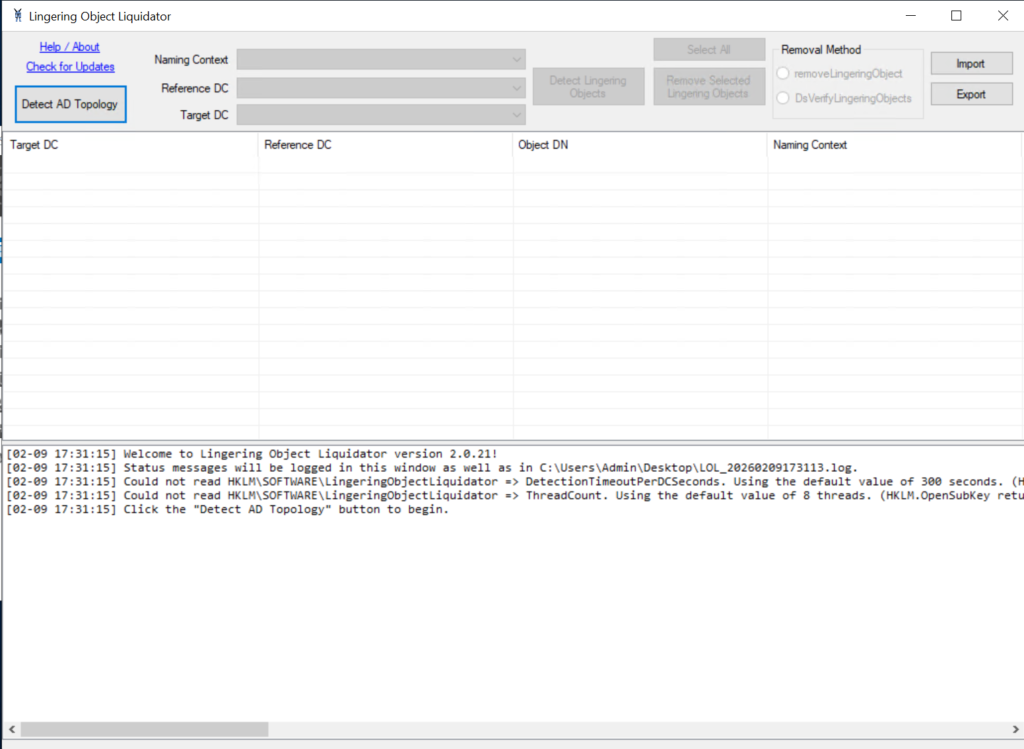
Step 4 — Scan for Lingering Objects
Within LoL:
- Select Source DC
- Select Reference DC
- Choose partition (Domain/Config/Schema/DNS)
- Click Scan
Review output carefully:
- Objects listed for deletion
- Scope of impact
- Cross-domain presence
This preview stage is equivalent to advisory mode.
Step 5 — Remove Lingering Objects
After confirmation:
- Select identified objects
- Execute Remove
LoL performs cleanup via supported directory APIs and logs results.
Repeat scans for:
- Domain partition
- Configuration partition
- DNS partitions
Step 6 — Force Replication
After cleanup:
repadmin /syncall /AdePValidate with:
repadmin /showreplEnsure errors are cleared.
Step 7 — Validate Directory Health
Run full checks:
dcdiag /v
repadmin /replsummary
Inspect Directory Service logs for new warnings.
Step 8 — Prevent Recurrence
Operational safeguards:
- Monitor replication latency
- Maintain DC connectivity
- Review tombstone lifetime policies
- Patch and maintain DC health
- Automated monitoring alerts
Conclusion
The LoL GUI tool offers a safer and more accessible method for identifying and removing lingering objects compared to manual command-line workflows. However, administrators should always address root replication failures before performing cleanup.
Active Directory health depends on consistency — and consistency depends on replication discipline.
Microsoft Article For your reference
https://www.microsoft.com/en-us/download/details.aspx?id=56051