
Deploying the Claude Desktop application across enterprise devices can be achieved using Microsoft Intune with the Win32 app packaging method. This guide walks through the complete process—from downloading the installer to assigning the application to devices.
1. Download the Claude Desktop Installer
Download the Claude Desktop installer from the official website:
- Visit: https://claude.com/download
- Download the Claude Setup.exe installer and place it in a dedicated source folder.
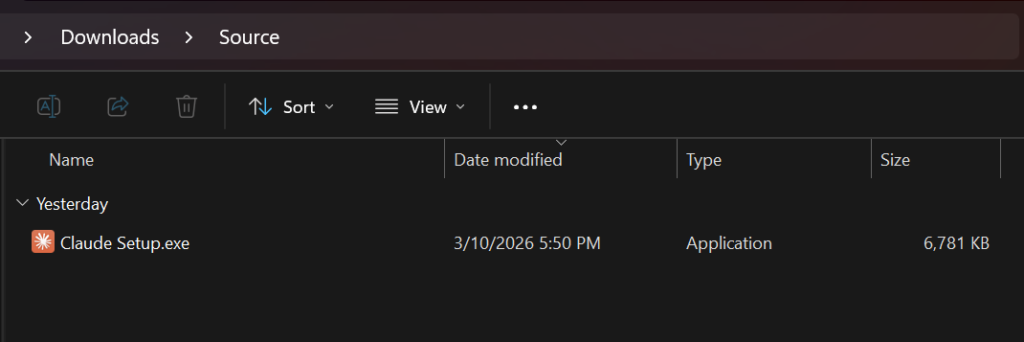
Example:C:\IntuneApps\Claude\
2. Download the Intune Win32 Content Prep Tool
Microsoft requires Win32 applications to be packaged into an .intunewin file before uploading.
Download the packaging tool from GitHub:
https://github.com/microsoft/Microsoft-Win32-Content-Prep-Tool
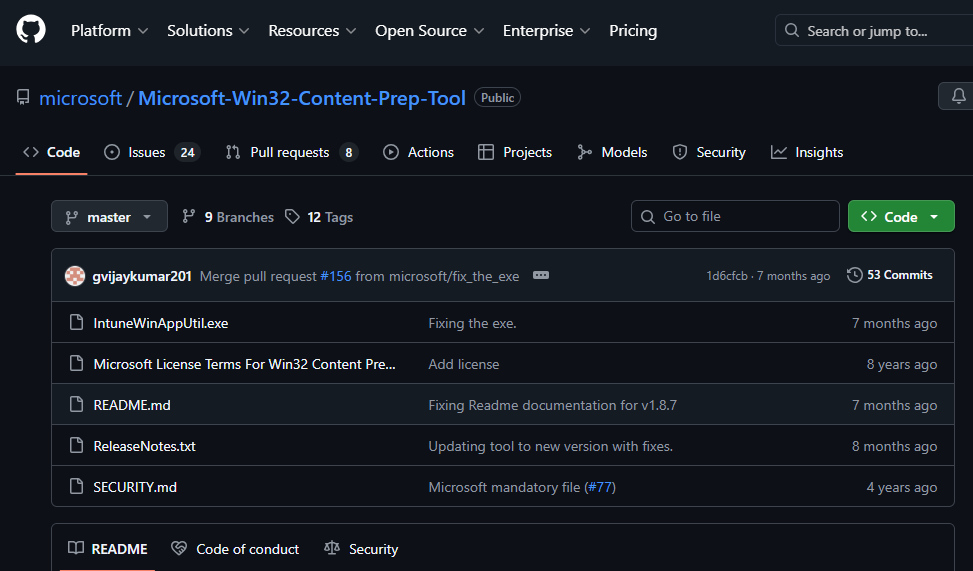
Extract the downloaded zip file to a working directory.
3. Create the IntuneWin Package
Open Command Prompt or PowerShell in the folder where the tool is extracted and run:
.\IntuneWinAppUtil.exeWhen prompted, provide the following details:
- Source Folder
Path whereClaude Setup.exeis stored
Example:C:\IntuneApps\Claude - Setup File
Claude Setup.exe - Output Folder
Location where the generated.intunewinfile will be saved. - Catalog Folder
N
After completion, the tool generates a packaged Claude.intunewin file.
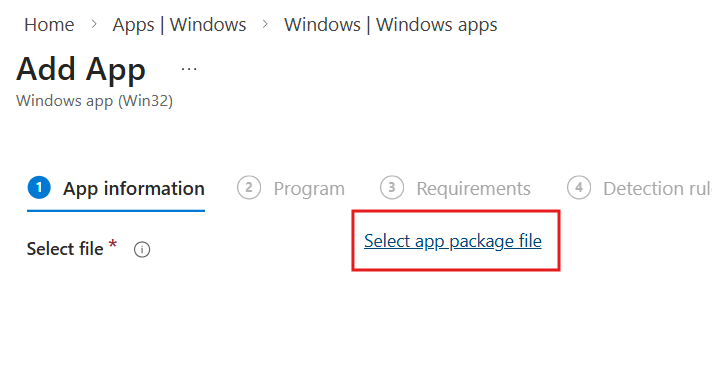
4. Upload the Application to Intune
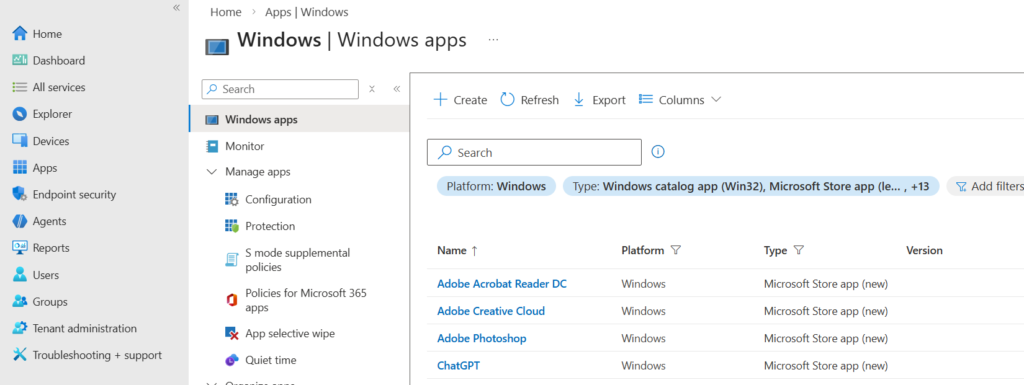
- Sign in to the Microsoft Intune Admin Center.
- Navigate to Apps.
- Select Windows Apps.
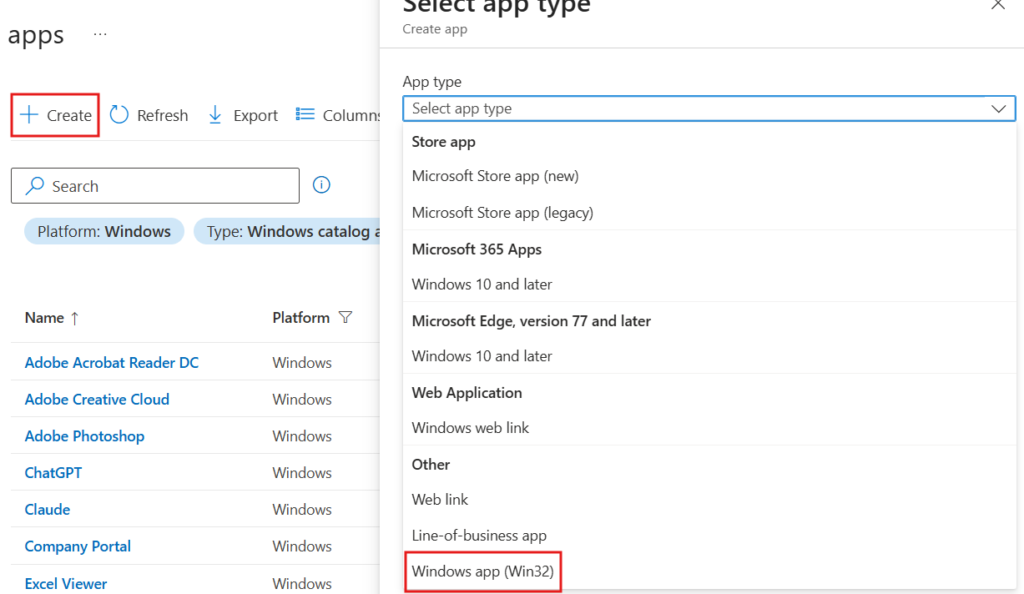
- Click Create.
- Select Windows app (Win32).
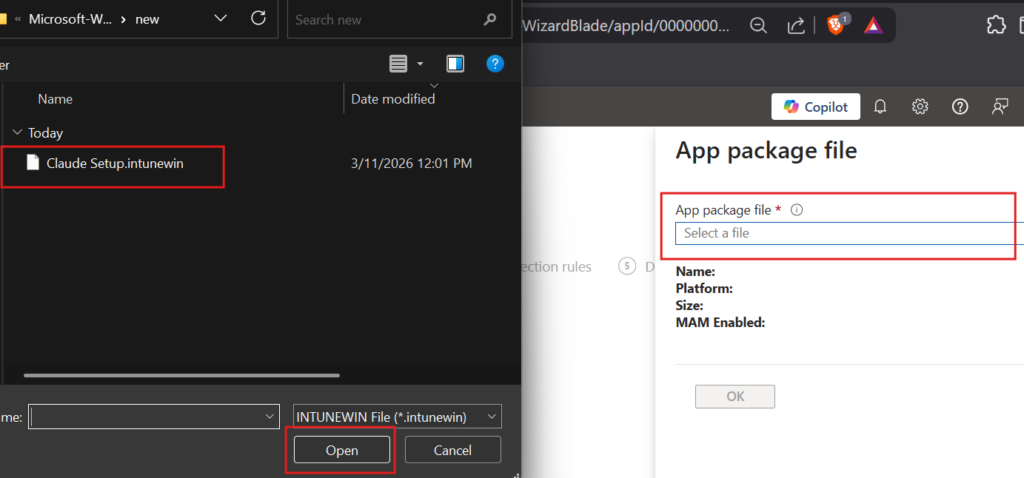
- Upload the generated .intunewin package.
5. Configure App Information
Enter the application details:
- Name: Claude
- Publisher: Antropic
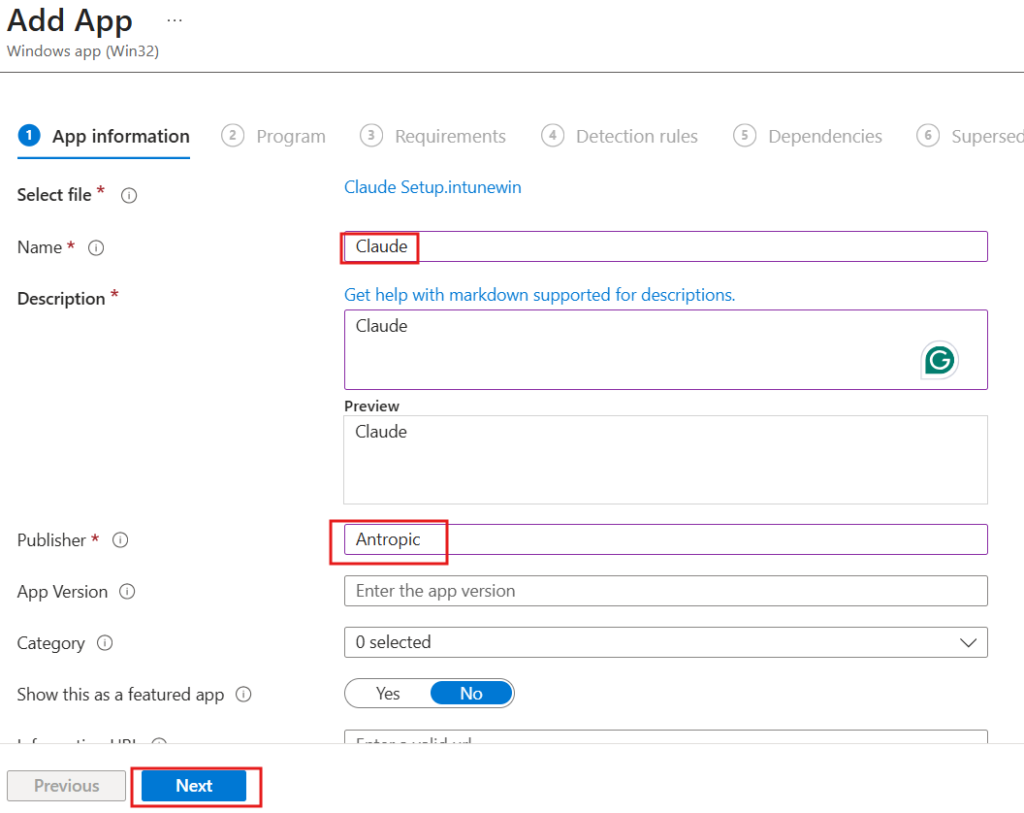
Click Next.
6. Configure Program Settings
Specify the installation and uninstall commands.
Install Command
Claude Setup.exe /SilentUninstall Command
powershell.exe -ExecutionPolicy Bypass -Command "Get-AppxPackage -Name '*Claude*' -AllUsers | Remove-AppxPackage -AllUsers"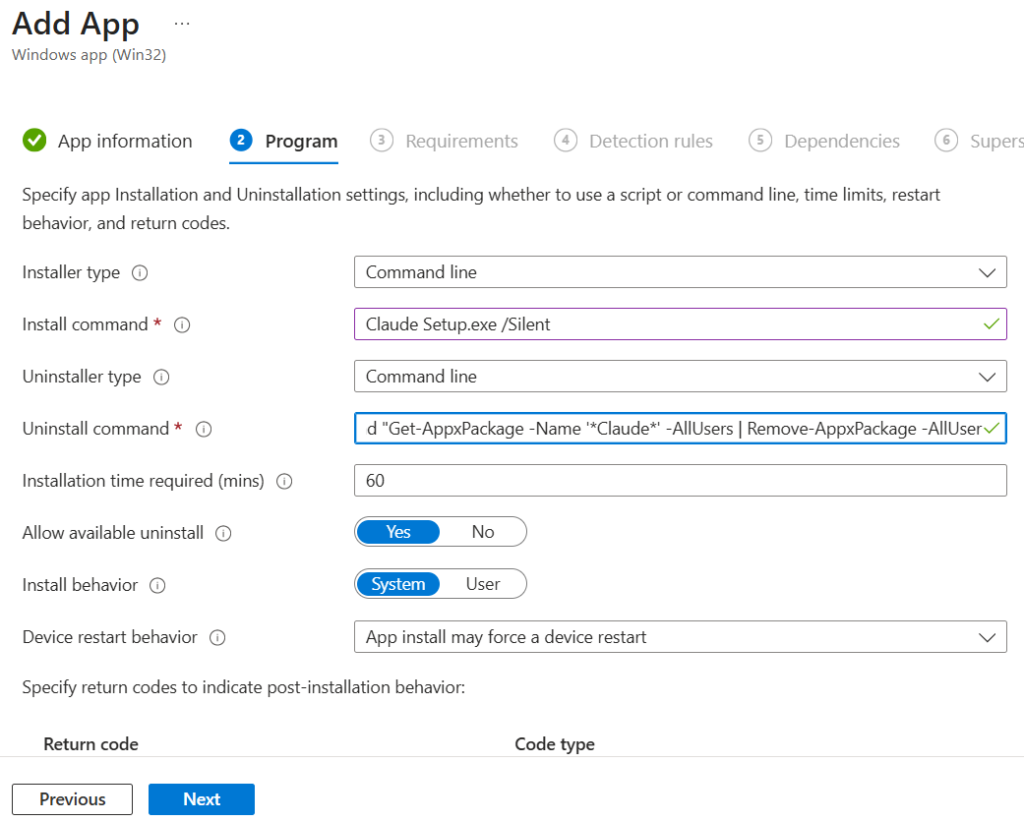
Click Next.
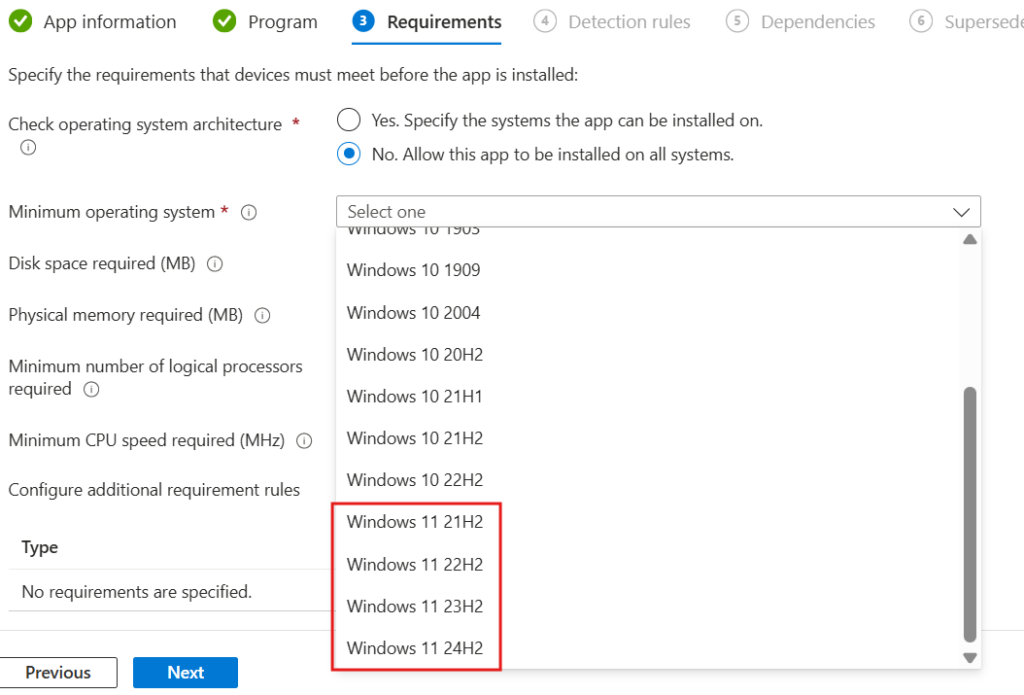
7. Configure Requirements
Set the minimum supported operating system:
- Minimum OS: Windows 11 22H2
Click Next.
8. Configure Detection Rules
Create a .ps1 file using Notepad with the below PowerShell command
# Intune Detection Script — Claude Desktop (MSIX) - Any Version
$package = Get-AppxPackage -AllUsers | Where-Object { $package.Name -like "*Claude*" -or $_.PackageFamilyName -like "*pzs8sxrjxfjjc*" }

if ($package) {
    Write-Host "Claude Desktop is installed: $($package.Version)"
    exit 0  # Detected
} else {
    exit 1  # Not detected
}
Savve the newly created .ps1 file in location in your computer.
In Intune, Choose Manually configure detection rules.
Click Add and configure the rule as follows:
- Rule Type: Use a custom detection script
- Browse the earlier saved .ps1 file.
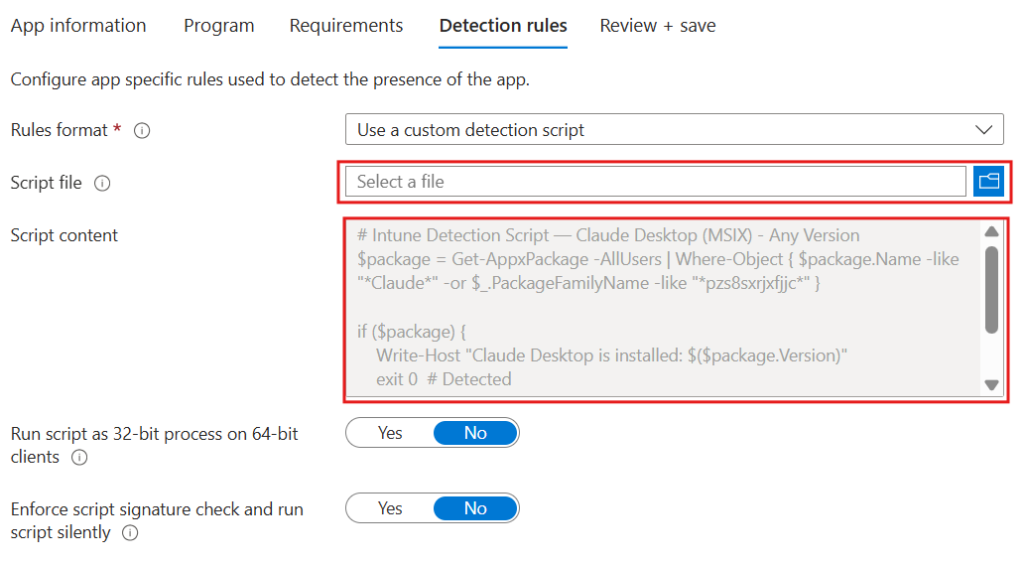
⚠️Note: This detection method works irrespective of Claude version.
Click Next.
9. Dependencies and Supersedence
If required, configure any dependencies or supersedence rules for the application.
Otherwise, proceed to the next step.
10. Assign the Application
Assign the application to the required device groups.
You can deploy it as:
- Required – Automatically installs on assigned devices
- Available for enrolled devices – Users can install from the Company Portal
Select the appropriate device group and complete the deployment.
Conclusion
By packaging the Claude Desktop installer as a Win32 application and deploying it through Microsoft Intune, administrators can centrally manage installation across Windows 11 devices. This approach ensures consistent deployment, simplified updates, and improved application management within enterprise environments.