
Symptom
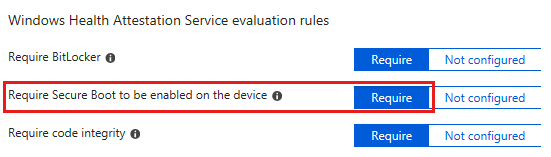
You create a compliance policy for Windows 10 devices in Intune. You set the Require Secure Boot to be enabled on the device setting to Require.
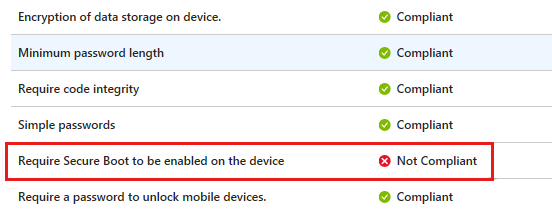
In this scenario, a Windows 10 device that meets the requirement is marked as Not Compliant.
Check Secure Boot status
To check the status of Secure Boot on your PC:
- Go to Start.
- In the search bar, type msinfo32 and press enter.
- System Information opens. Select System Summary.
- On the right-side of the screen, look at BIOS Mode and Secure Boot State. If Bios Mode shows UEFI, and Secure Boot State shows Off, then Secure Boot is disabled.
Cause
The Require Secure Boot to be enabled on the device setting is supported on some TPM 1.2 and 2.0 devices. For devices that don’t support TPM 2.0 or later, the policy status in Intune shows as Not Compliant. TPM 2.0 requires UEFI firmware. A computer with legacy BIOS and TPM 2.0 won’t work as expected.
For more information about supported versions, see Supported versions for device health attestation.
For more information about how mobile device management (MDM) solutions use the Health Attestation Service, see Protect, control, and report on the security status of Windows 10-based devices.
Troubleshooting Steps
Use these steps to check whether your device meets the hardware requirements for the health attestation feature.
- Check the TPM version.Type
tpm.mscin the Run box, and then check the value in Specification Version.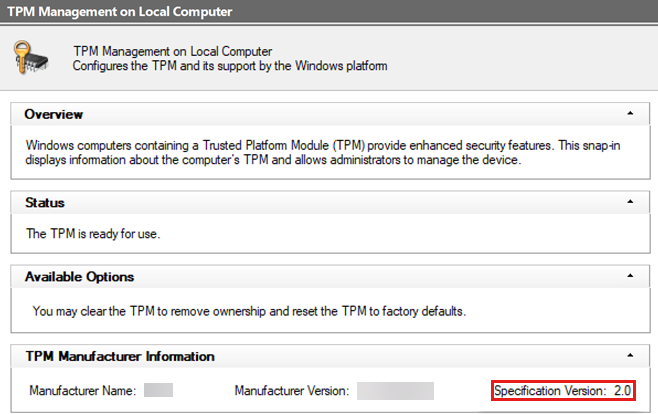 NoteIf the TPM version is 1.2 and your device supports TPM 2.0, contact your device manufacturer to update to TPM 2.0.
 - Open an elevated command prompt, and run the
msinfo32command. - In System Summary, verify that BIOS Mode is UEFI, and PCR7 Configuration is Bound.

- Open an elevated PowerShell command prompt, and run the following command:PowerShellCopy
Confirm-SecureBootUEFIVerify that it returns the value of True. - Run the following PowerShell command:PowerShellCopy
manage-bde -protectors -get $env:systemdriveVerify that the drive is protected by PCR 7.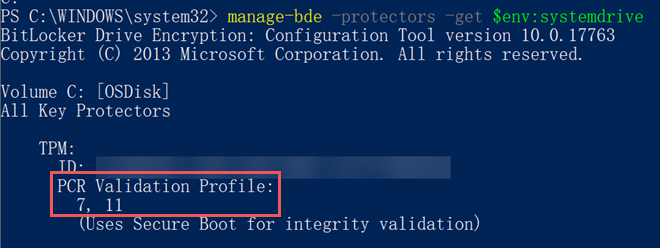
If any issues similar to the below screenshot. enter the Command
manage-bde -protectors c: -add -tpm
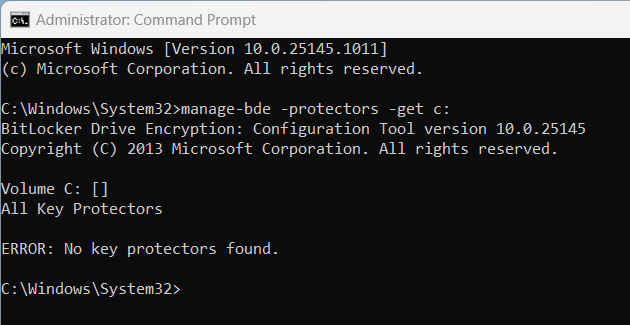
If you encounter BitLocker could not be enabled when USB drive is not found error.
Symptoms
When attempting to turn on BitLocker using a Startup Key as a protector and the system check option is accepted, BitLocker restarts the machine to complete the hardware test. If the USB drive holding the Startup Key is removed, or if USB ports are not enumerated correctly by the BIOS, then BitLocker isn’t enabled on the volume and you may see following error message:
BitLocker could not be enabled.
The BitLocker encryption key cannot be obtained. Verify that the Trusted Platform Module (TPM) is enabled and ownership has been taken. If this computer does not have a TPM, verify that the USB drive is inserted and available.
C: was not encrypted.

Cause
Boot Manager (Bootmgr) verifies that, the key material needed to unlock the disk is available before booting and starting encryption. If it is not available during the pre-boot hardware test before encryption, BitLocker will refuse to encrypt rather than leave the disk in a state that may not be usable in the expected manner. In the Startup Key case, this can occur when Bootmgr fails to find the Startup Key, either because then USB flash drive containing the Startup Key wasn’t plugged in, or because the BIOS did not correctly enumerate the USB port with the USB drive inserted.
Resolution
The resolution will depend on the underlying cause. If you have already verified that the USB flash drive containing the Startup Key is inserted correctly and securely in the USB port, try the following steps:
- Some USB ports are not enumerated during boot. Try a different USB port.
- Some USB drives cannot be read during boot. Try a different USB dongle.
- Boot into the BIOS and ensure USB is supported at boot time.
- Check to see if there is a firmware update for your machine.