
To check the status of the NTP server, run the command:
w32tm /query /status

To reveal the current NTP pool being used to sync time with execute:
w32tm /query /source

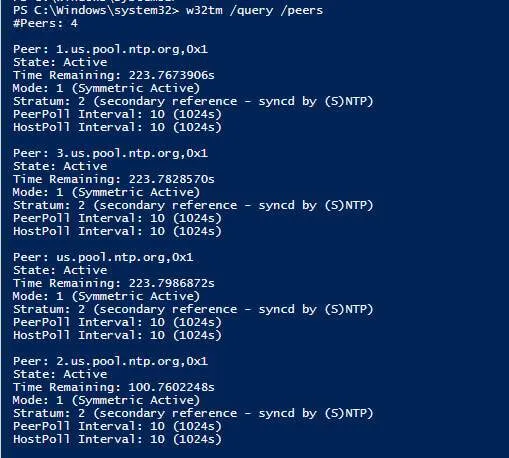
You can also display a list of NTP time servers along with their configuration status as shown.
w32tm /query /peers
To display NTP server configuration settings, run the command:
To resync the tie with the NTP Server.
w32tm /resync
To start and stop the time service
net stop w32time
net start w32time
To check the configuration.
net time /querysntp
To view the w32tm configuration
w32tm /query /configuration
To manually configure the peer
w32tm /config /manualpeerlist:”0.us.pool.ntp.org 1.us.pool.ntp.org 2.us.pool.ntp.org 3.us.pool.ntp.org” /syncfromflags:manual /reliable:YES /update
The output should look similar to the line below:
The current SNTP value is:[server],0x8
PowerShell command to get the time sync details from registry
Get-PSRegistry -ComputerName $_ -RegistryPath "HKLM\SYSTEM\CurrentControlSet\Services\W32Time\Parameters"
GPO location for NTP configuration on DC.
Computer Configuration \ Policies \ Admin Templates \ System \ Windows Time Service \ Time Providers \ Configure Windows NTP Client
NTP Server Flags and its Purpose.
0x01	SpecialInterval	    1
0x02	UseAsFallbackOnly	2
0x03	SpecialInterval + UseAsFallbackOnly	3
0x04	SymmetricActive	4
0x05	SpecialInterval + SymmetricActive	5
0x06	UseAsFallbackOnly + SymmetricActive	6
0x07	SpecialInterval + UseAsFallbackOnly + SymmetricActive	7
0x08	Client	8
0x09	SpecialInterval + Client	9
0x0A	UseAsFallbackOnly + Client	10
0x0B	SpecialInterval + UseAsFallbackOnly + Client	11
0x0C	SymmetricActive + Client	12
0x0D	SpecialInterval + SymmetricActive + Client	13
0x0E	UseAsFallbackOnly + SymmetricActive + Client	14
0x0F	SpecialInterval + UseAsFallbackOnly + SymmetricActive + Client	15