
Thanks to Maxime Rastello for creating this article.
Without data or configuration loss
There is a way to manually re-enroll your Windows 10 PC without loosing all the current configuration and apps deployed by Microsoft Intune.
This method is not officially supported by Microsoft
As you may know, automatic enrollment can be triggered either by a Group Policy Object or by the SCCM client on a co-managed device.
In both cases, the feature will basically create a scheduled task to enroll the PC at next logon. The command is different if you are trying to enroll Windows 10 / Windows 11 Enterprise multi-session devices from Azure Virtual Desktop (using Device Credential) or a regular Windows 10 / Windows 11 device using User Credential:
Windows 10 / Windows 11 Enterprise (with User Credential)
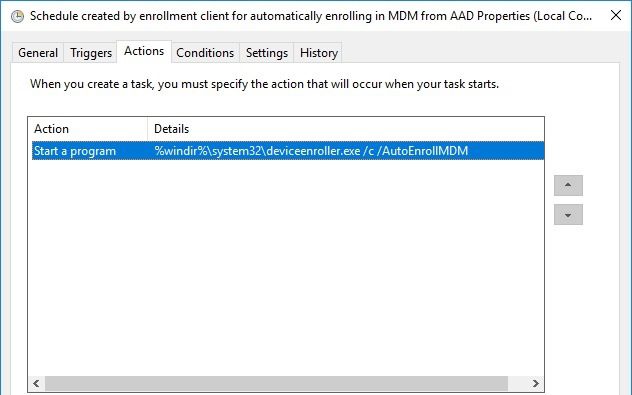
Task launched in the SYSTEM context:
%windir%\system32\deviceenroller.exe /c /AutoEnrollMDMWindows 10 / Windows 11 Enterprise Multi-session for Azure Virtual Desktop (with Device Credential)
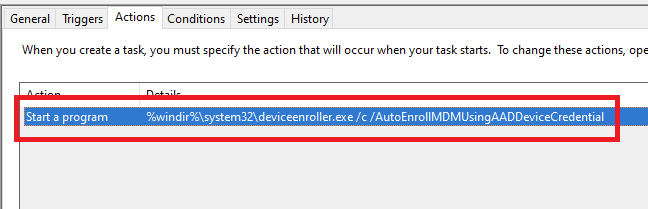
Task launched in the SYSTEM context:
%windir%\system32\deviceenroller.exe /c /AutoEnrollMDMUsingAADDeviceCredentialTo manually re-enroll the PC, we will need to clean up the environment and relaunch this command in the SYSTEM context to re-enroll the PC.
Here are the steps that you need to follow to make it work:
- Delete stale scheduled tasks
- Delete stale registry keys
- Delete the Intune enrollment certificate
- Restart the enrollment process
Step 1: Delete stale scheduled tasks
Follow this procedure:
- Run the Task Scheduler as an administrator.
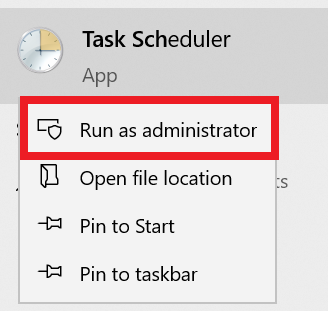
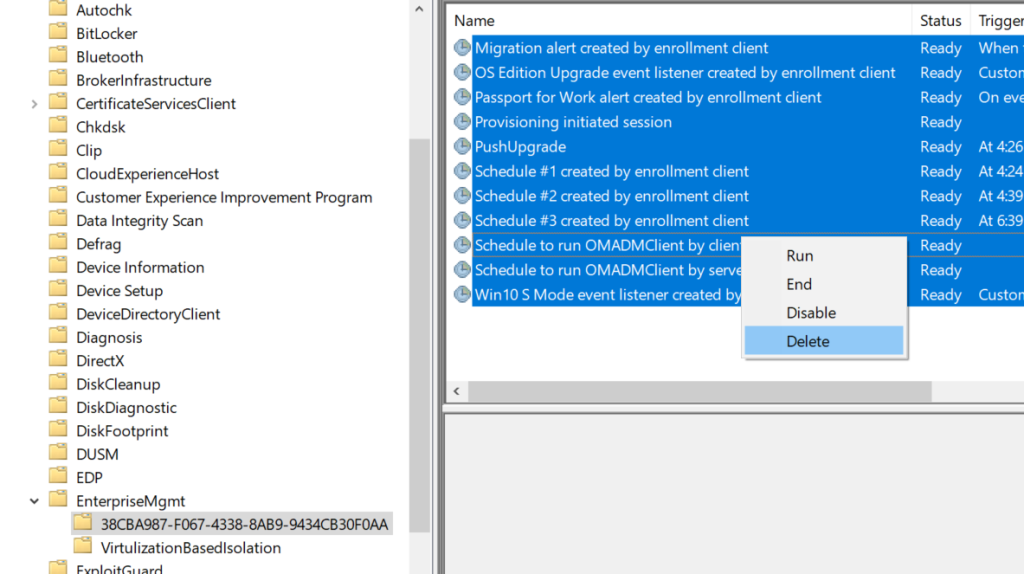
- Go to Task Scheduler Library > Microsoft > Windows > EnterpriseMgmt. Write down the enrollment ID somewhere, you will need it for the cleanup.
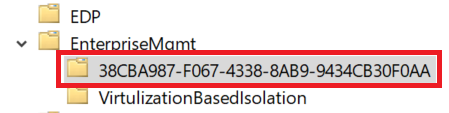
- Delete all the existing tasks the enrollment folder.
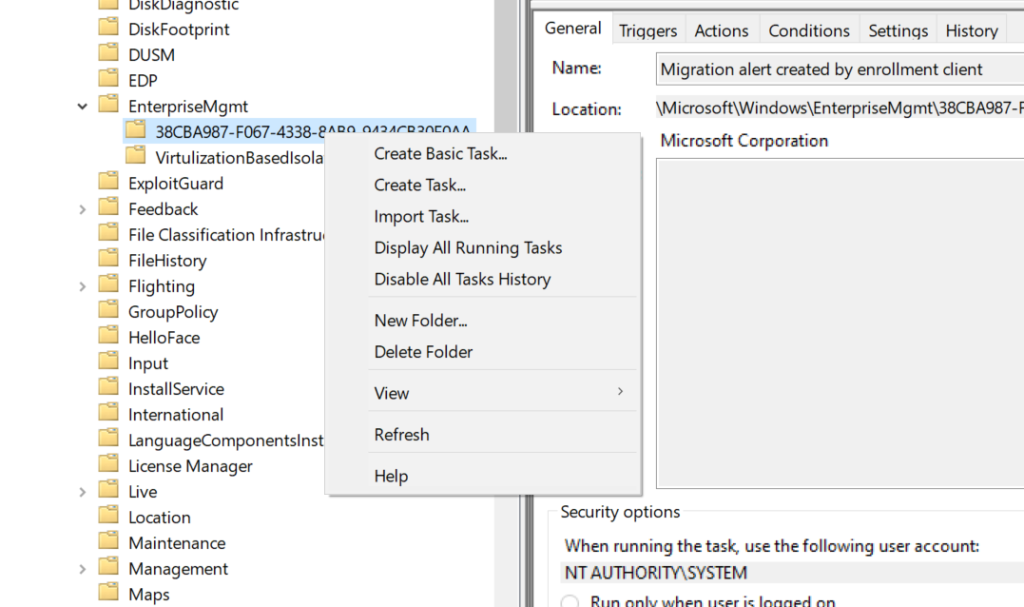
- Delete the enrollment ID folder.
Step 2: delete stale registry keys
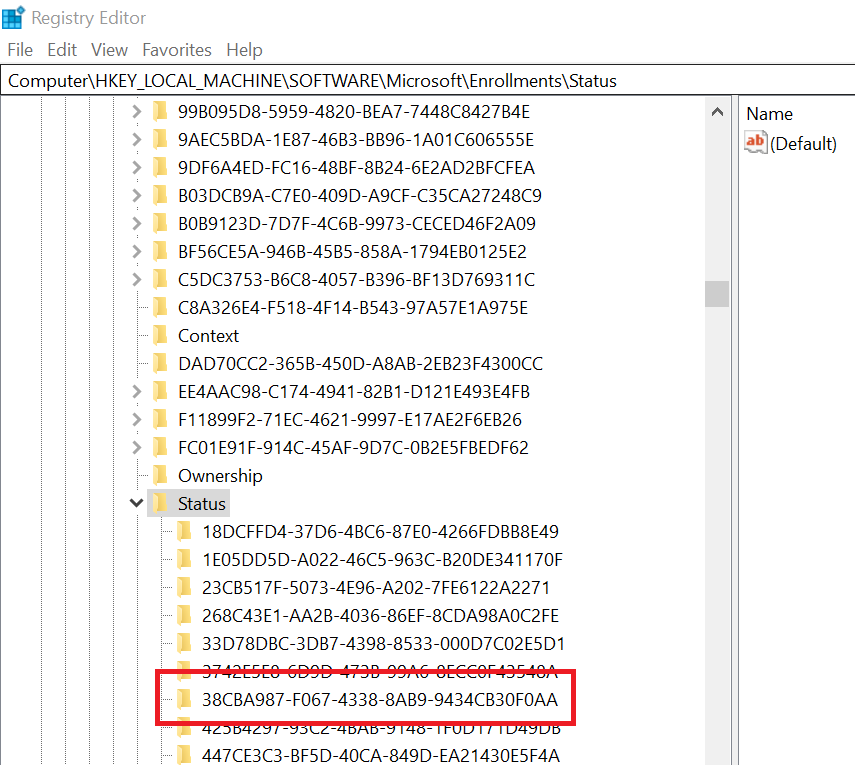
Use the previous enrollment ID to search the regitry:
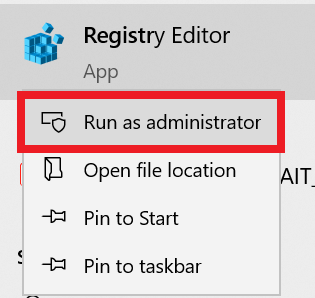
- Open the Registry Editor as an administrator.
- Search for the enrollment ID you wrote in the following locations and if found, delete the key that is containing the ID:
- HKEY_LOCAL_MACHINE\SOFTWARE\Microsoft\Enrollments\xxxxxxxxxxxxx
- HKEY_LOCAL_MACHINE\SOFTWARE\Microsoft\Enrollments\Status\xxxxxxxxxxxxx
- HKEY_LOCAL_MACHINE\SOFTWARE\Microsoft\EnterpriseResourceManager\Tracked\xxxxxxxxxxxxx
- HKEY_LOCAL_MACHINE\SOFTWARE\Microsoft\PolicyManager\AdmxInstalled\xxxxxxxxxxxxx
- HKEY_LOCAL_MACHINE\SOFTWARE\Microsoft\PolicyManager\Providers\xxxxxxxxxxxxx
- HKEY_LOCAL_MACHINE\SOFTWARE\Microsoft\Provisioning\OMADM\Accounts\xxxxxxxxxxxxx
- HKEY_LOCAL_MACHINE\SOFTWARE\Microsoft\Provisioning\OMADM\Logger\xxxxxxxxxxxxx
- HKEY_LOCAL_MACHINE\SOFTWARE\Microsoft\Provisioning\OMADM\Sessions\xxxxxxxxxxxxx
DO NOT delete registry keys that are not in the list above. They will be overwritten after the new enrollment.
Step 3: delete the Intune enrollment certificate
Follow the procedure:
- Search for the option “Manage computer certificates” or use the command certlm.msc as an administrator.
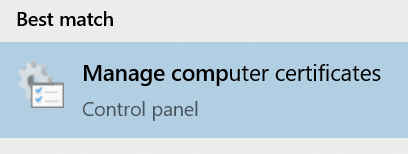
- Go to Personal > Certificates and delete the certificate issued by either “Microsoft Intune MDM Device CA” or “SC_Online_Issuing” (depending on the date of the enrollment).

Step 4: Restart the enrollment process
To be properly executed, the enrollment command must be entered in a SYSTEM context. We will use the PSExec tool for that purpose.
- Download the PSExec tool from Microsoft website
- Use PSExec to launch a Command Prompt as SYSTEM:
psexec /i /s cmd- In the Command Prompt, enter one of the following command depending on your enrollment type:
Windows 10 / Windows 11 Enterprise (using User Credential)
%windir%\system32\deviceenroller.exe /c /AutoEnrollMDMWindows 10 / Windows 11 Enterprise Multisession for Azure Virtual Desktop (using User Credential)
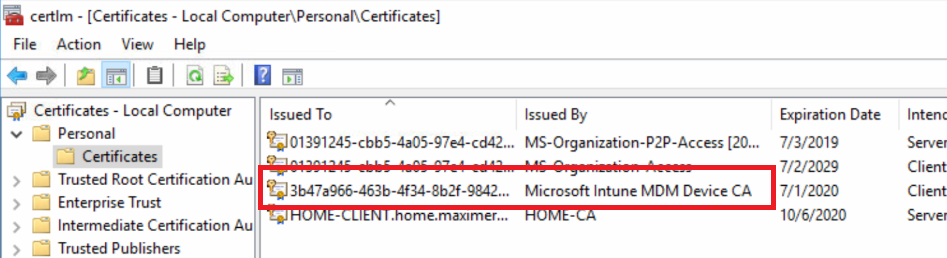
%windir%\system32\deviceenroller.exe /c /AutoEnrollMDMUsingAADDeviceCredential- In the computer certificate store, check that a new Intune certificate has been enrolled for the device:
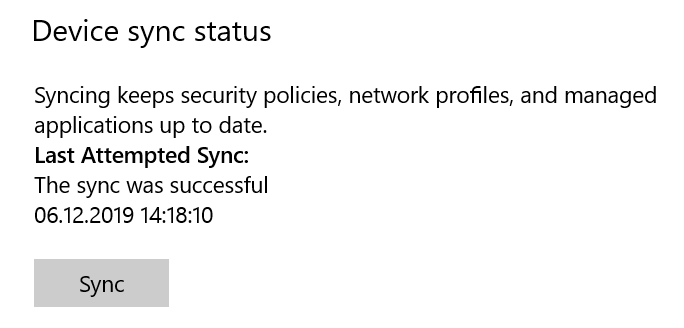
- You are now ready to start a policy sync from the Windows Settings, and check that the connection with the Intune service is now OK:
Manually re-enroll a Hybrid Azure AD Join Windows 10 / Windows 11 device to Microsoft Intune without loosing the current configuration