
Widgets in Windows 11 can be distracting or unnecessary in certain environments. You can disable them through Group Policy Objects (GPO) by using the “News and Interests” ADMX and ADML files exported from a Windows 11 device. This guide outlines the steps to copy the necessary files, import them into the Active Directory (AD) server, and create a GPO to disable Widgets.
Prerequisites
- A Windows 11 device with the “News and Interests” ADMX and ADML files.
- Administrative access to the Active Directory server.
- Group Policy Management Console installed.
Step 1: Export the ADMX and ADML Files from a Windows 11 Device
- Locate the ADMX Files on the Windows 11 Device:
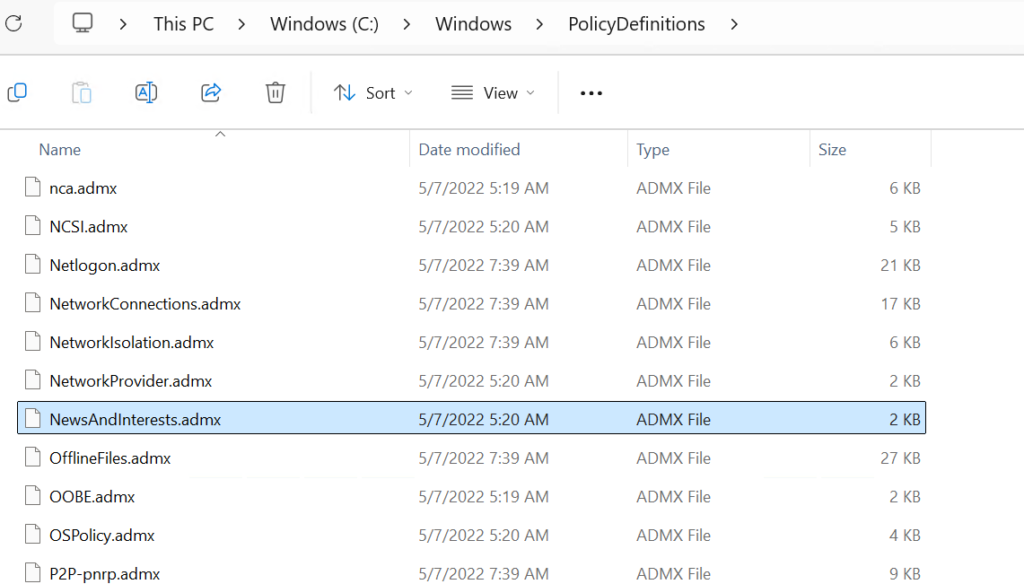
- Navigate to the directory where policy definition files are stored:
C:\Windows\PolicyDefinitions
- Navigate to the directory where policy definition files are stored:
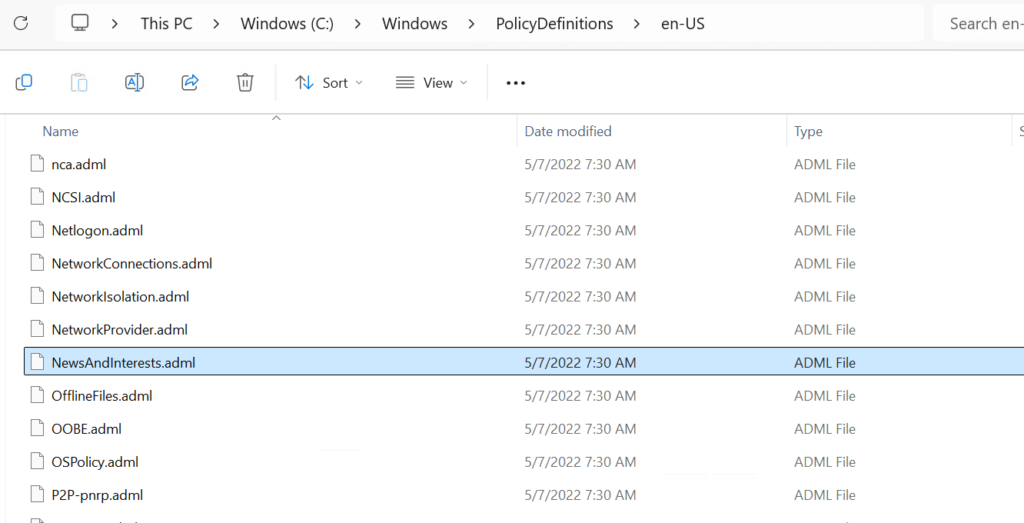
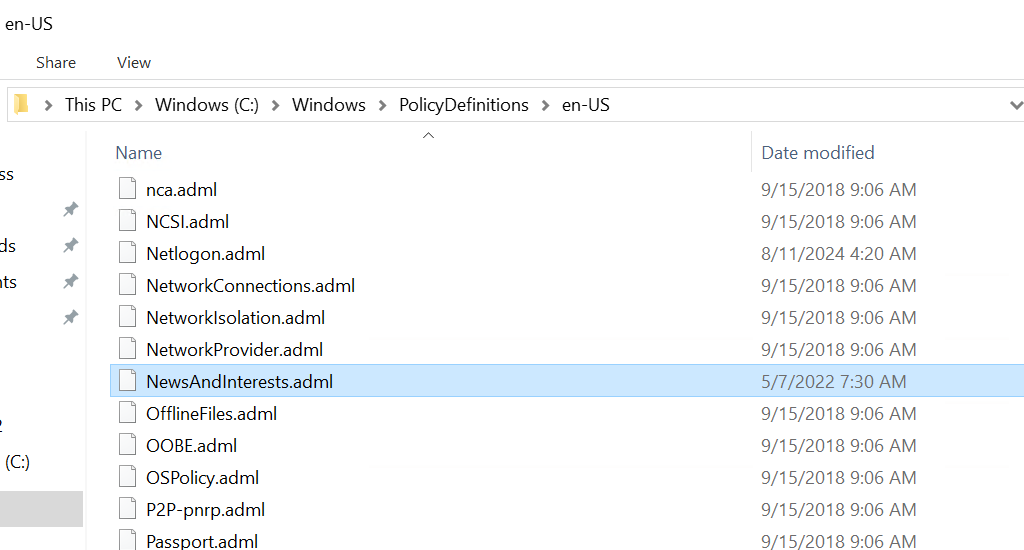
Look for the following files:
NewsAndInterests.admx(used for configuring Widgets).- Corresponding language file (e.g.,
NewsAndInterests.admlfor English) located in theen-USfolder.
- Copy the Files:
- Copy
NewsAndInterests.admxto a removable drive or a network share. - Navigate to the language folder (e.g.,
C:\Windows\PolicyDefinitions\en-US) and copyNewsAndInterests.admlto a removable drive or a network share.
Step 2: Import the ADMX and ADML Files to the AD Server
- Access the Central Store on the AD Server:
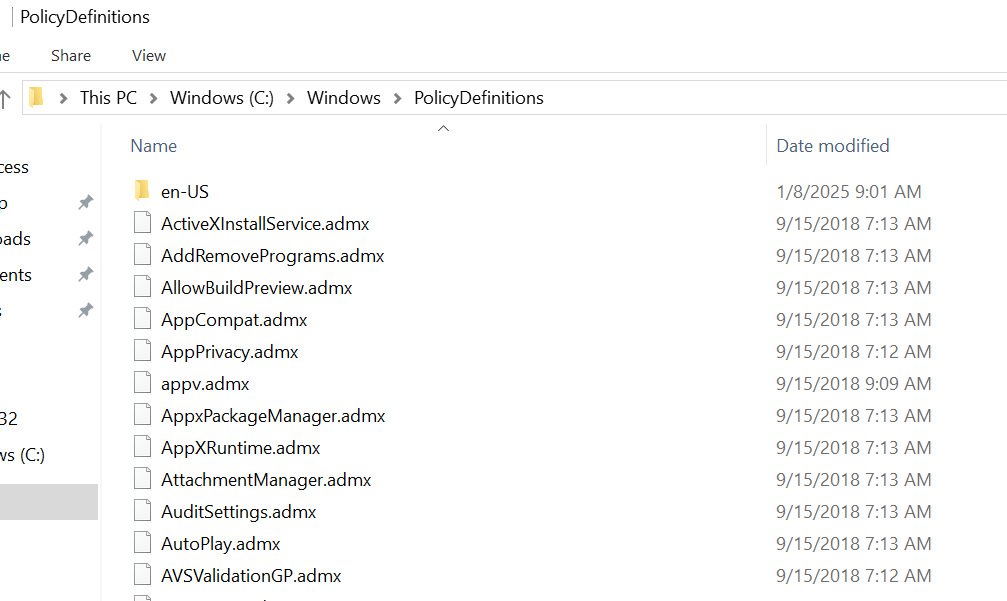
- Open File Explorer on the AD server and navigate to:
C:\Windows\\PolicyDefinitions
- Open File Explorer on the AD server and navigate to:
- Paste the ADMX File:
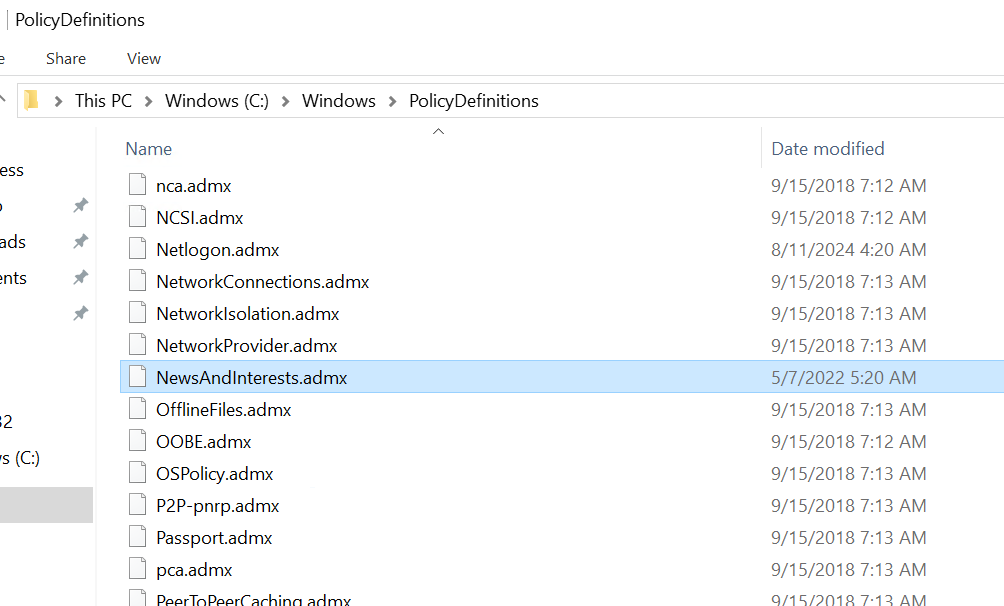
- Paste
NewsAndInterests.admxinto thePolicyDefinitionsfolder.
- Paste
- Paste the ADML File:
- Navigate to the language folder (e.g.,
en-US) within thePolicyDefinitionsfolder. - Paste
NewsAndInterests.admlinto the corresponding language folder (e.g.,PolicyDefinitions\en-US).
- Navigate to the language folder (e.g.,
Step 3: Create a GPO to Disable Widgets
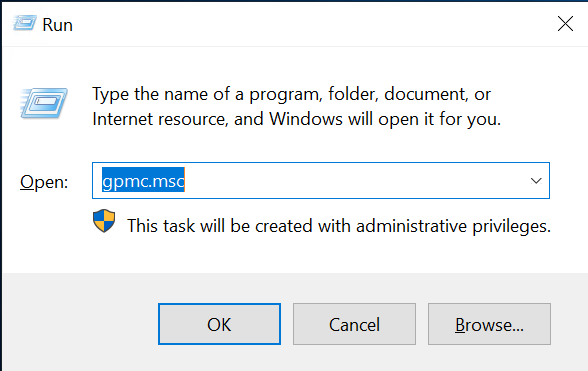
- Open the Group Policy Management Console (GPMC):
- Press
Win + R, typegpmc.msc, and press Enter.
- Press
- Create a New GPO:
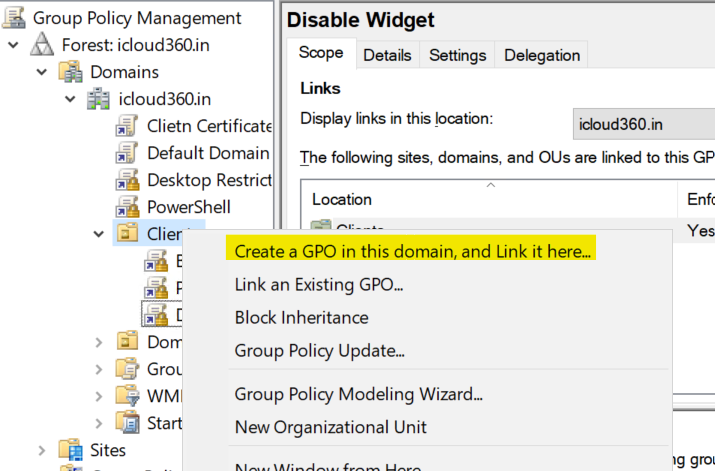
- In the GPMC, right-click on your domain or Organizational Unit (OU) where you want to apply the policy.
- Select Create a GPO in this domain, and Link it here…
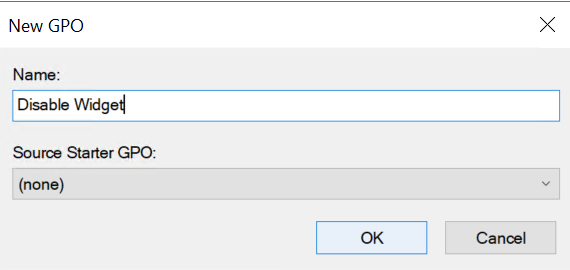
- Name the GPO (e.g., “Disable Widgets”).
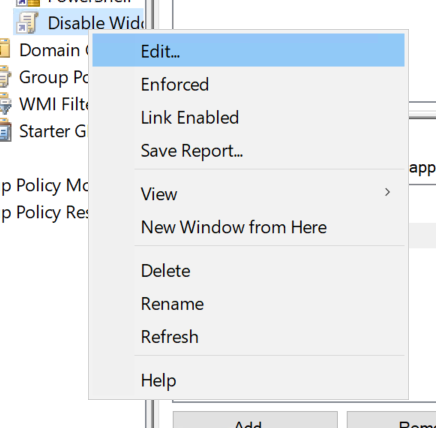
- Edit the GPO:
- Right-click the newly created GPO and select Edit.
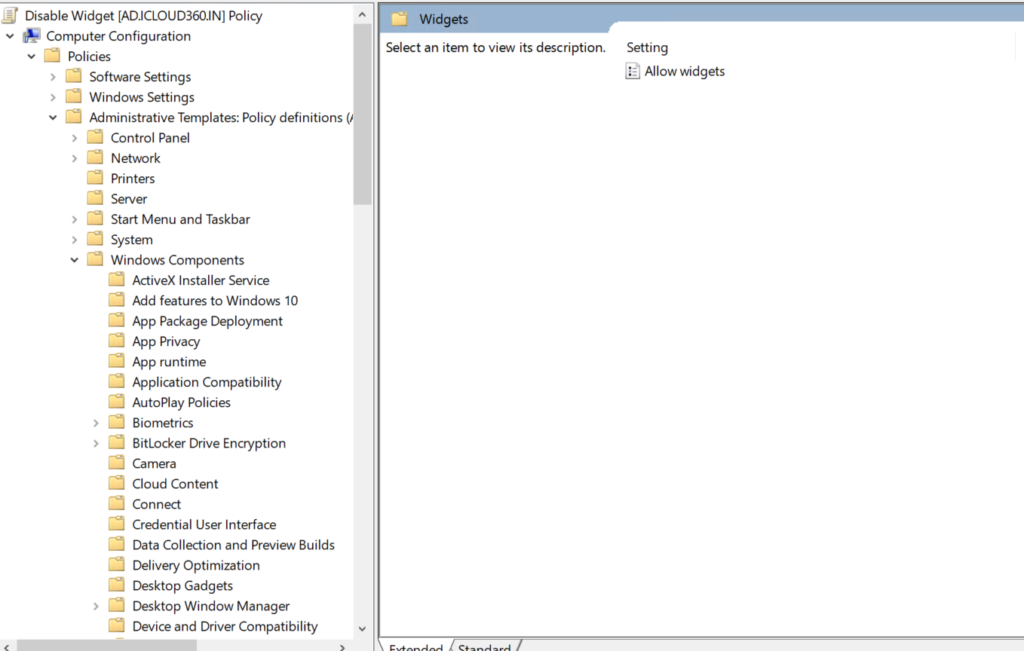
- Navigate to the Widgets Policy Setting:
- In the Group Policy Management Editor, go to:
Computer Configuration > Administrative Templates > Windows Components > Widgets
- In the Group Policy Management Editor, go to:
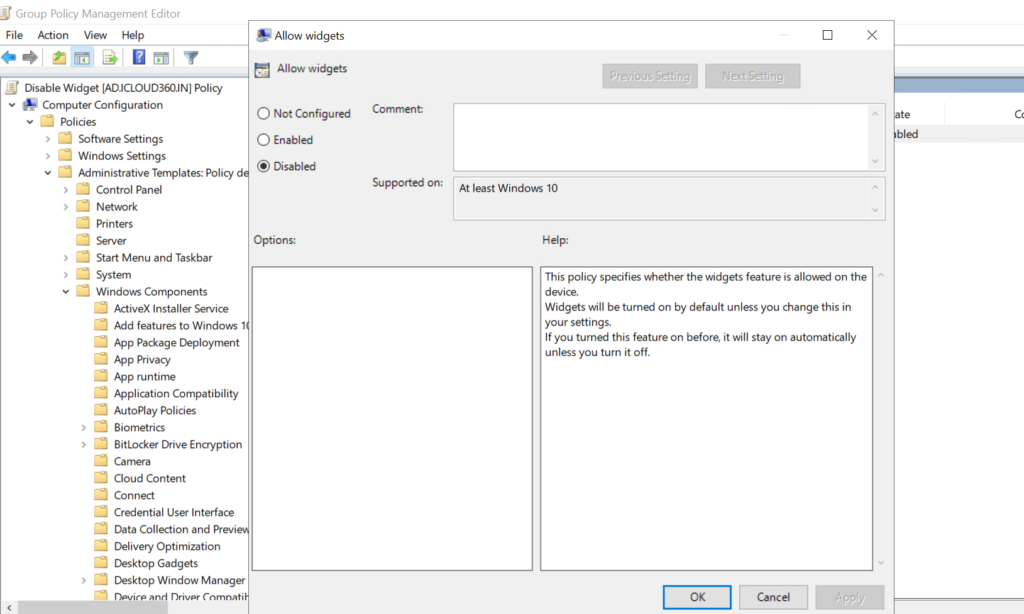
- Configure the Policy:
- Double-click on Allow widgets.
- By default, this policy will be in the Not Configured state.
- Select Disabled.
- Click Apply and then OK.
- Close the GPO Editor:
- Exit the editor and ensure the GPO is linked to the appropriate domain or OU.
Step 4: Update Group Policy on Client Devices
- Force a Group Policy Update:
- On client devices, open Command Prompt as Administrator.
- Run the following command to apply the policy:
gpupdate /force
- Verify the Widgets Are Disabled:
- Check the taskbar to ensure Widgets are no longer visible.
Conclusion
By following these steps, you can effectively disable Widgets on Windows 11 devices in your domain using GPO.