
Configure Endpoint Protection profile
At the moment of writing, I still use an Endpoint Protection profile in Microsoft Intune to configure encryption settings as I haven`t tested the BitLocker settings yet which are found on the Endpoint Security tab.
- Sign-in to the Endpoint Manager admin center
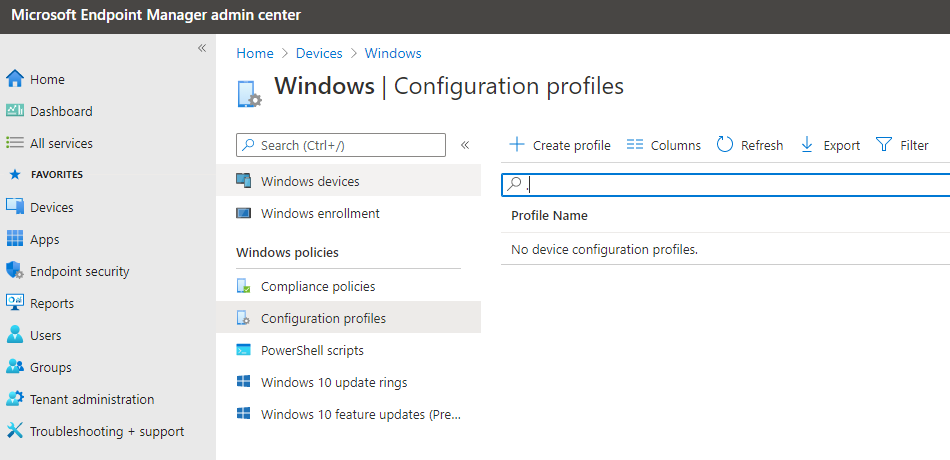
- Browse to Devices – Windows
- On the Configuration Profiles tab click +Create profile
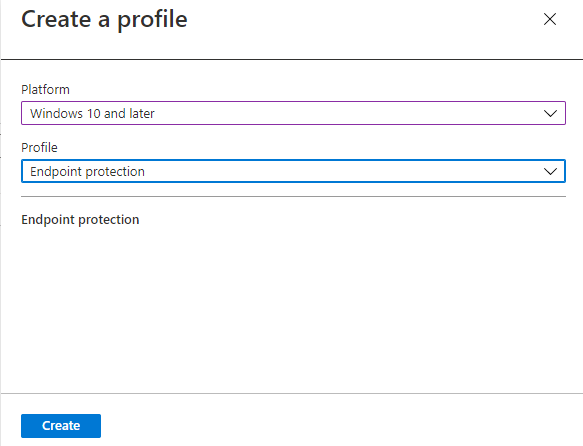
- Choose Windows 10 and later as Platform
- Choose Endpoint Protection as Profile type
- Click Create
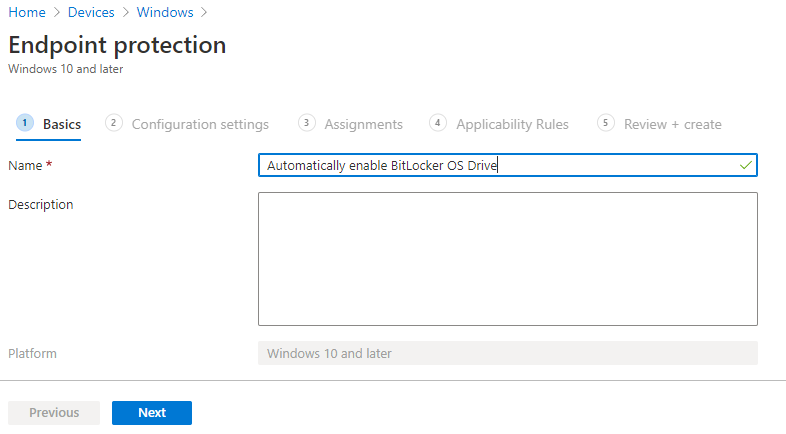
Give the configuration profile a Name
- Enter a Description (optional)
- Click Next
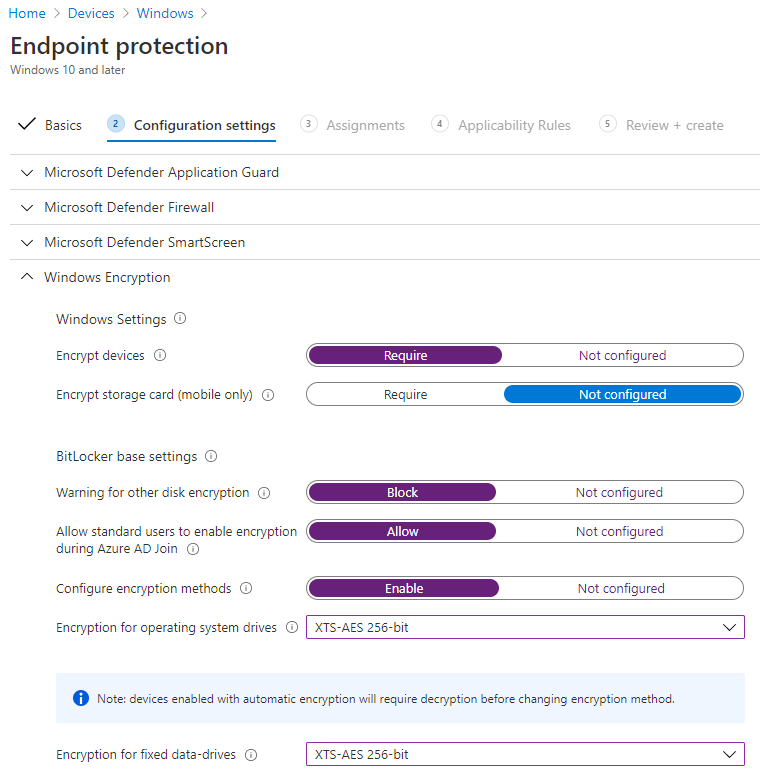
Under Windows Encryption it is important to at least configure these settings for silent encryption to work for the OS drive. Key in this is to allow standard users to enable encryption and to only allow (require) TPM startup (and block the other options):
BitLocker base settings
- Encrypt Devices – Require
- Warning for other disk encryption – Block
- Allow standard users to enable encryption during Azure AD Join – Allow
- Configure encryption methods – Enable
- Encryption for operating system drives – Choose your preferred algorith
BitLocker OS drive settings
- Additional authentication at startup – Require
- BitLocker with non-compatible TPM chip – Block
- Compatible TPM startup – Require TPM
- Other Compatible TPM options – Do Not allow
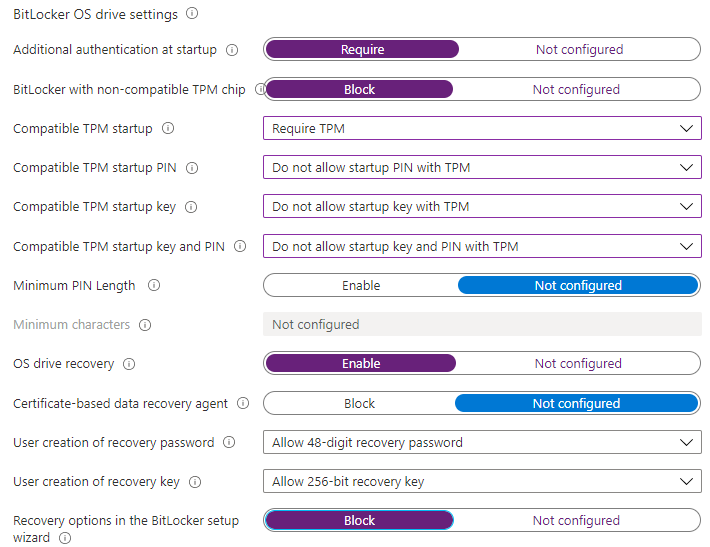
Additional settings to configure, related to BitLocker recovery information.
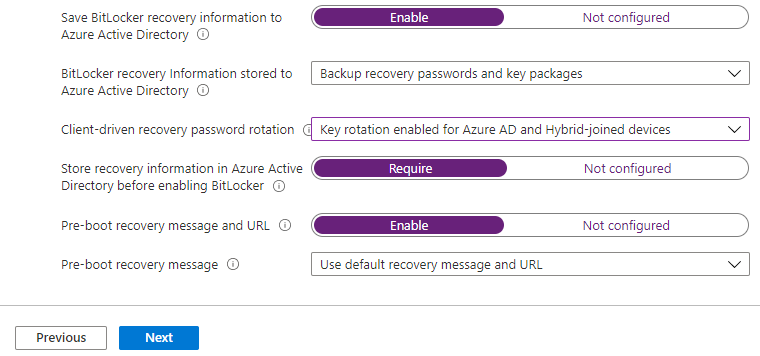
This should do the trick. If needed you can also configure the settings related to fixed drive and removable data-drive, but it`s not needed for the OS drive.