
Now let’s look at how to create Microsoft Defender firewall rules via Group Policy. To configure your rules, go to Computer Configuration -> Windows Settings -> Security Settings -> Windows Firewall with Advanced Security.
The following sections are available in Firewall GPO:
- Inbound rules
- Outbound rules
- Connection security rules
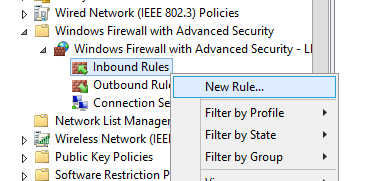
Let’s try to create an allowing inbound firewall rule. For example, we want to allow the incoming RDP connection on Windows (the default RDP port is TCP 3389). Right-click the Inbound Rules section and select New Rule. The New Firewall Rule Wizard starts.
The firewall rule wizard has an interface similar to that of the local Windows Firewall on the user’s desktop computer.
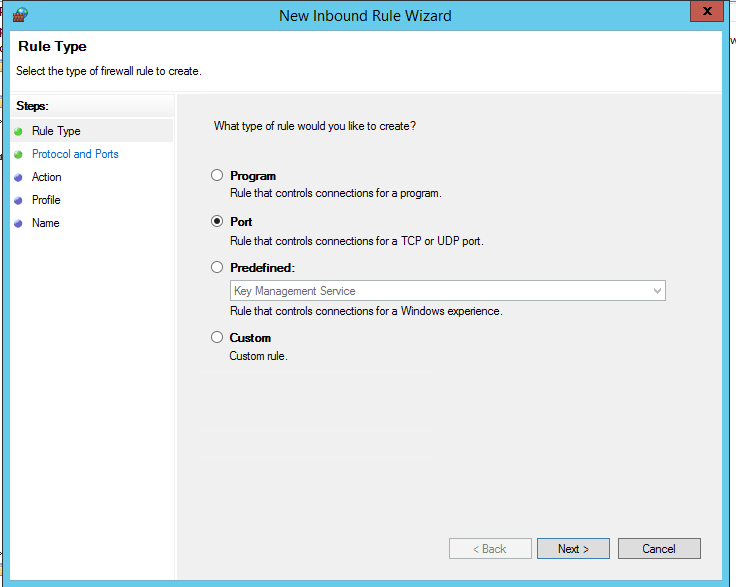
Select the rule type. You can allow access to:
- Program – you can select a program executable (.exe);
- Port – you can select a TCP/UDP port or a port range;
- Predefined – select one of the standard Windows rules, which already contain access rules (both executable files and ports are described) to typical services (e. g., AD, HTTP(s), DFS, BranchCache, Remote restart, SNMP, KMS, WinRM, etc.);
- Custom – here you can specify a program, a protocol (protocols other than TCP or UDP, like ICMP, GRE, L2TP, IGMP, etc.), client IP addresses, or an entire IP network (subnet).
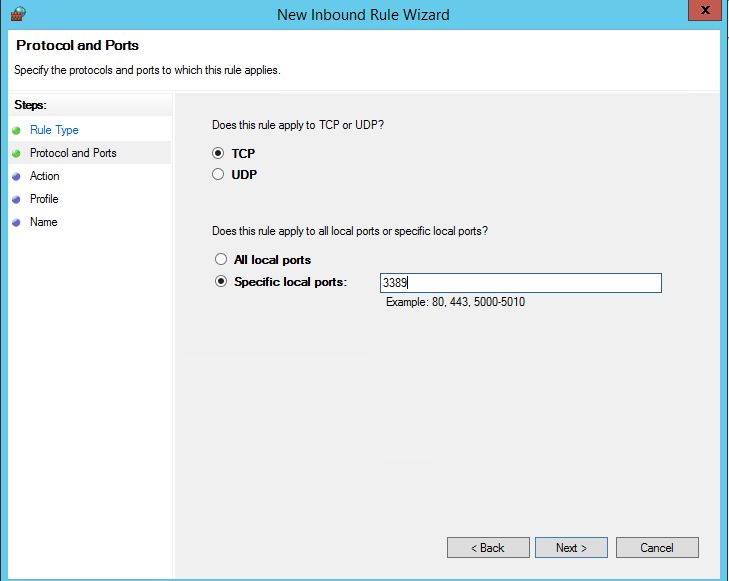
In our case, we’ll select the Port rule. Let’s specify TCP as the protocol, and 3389 as the local port number.
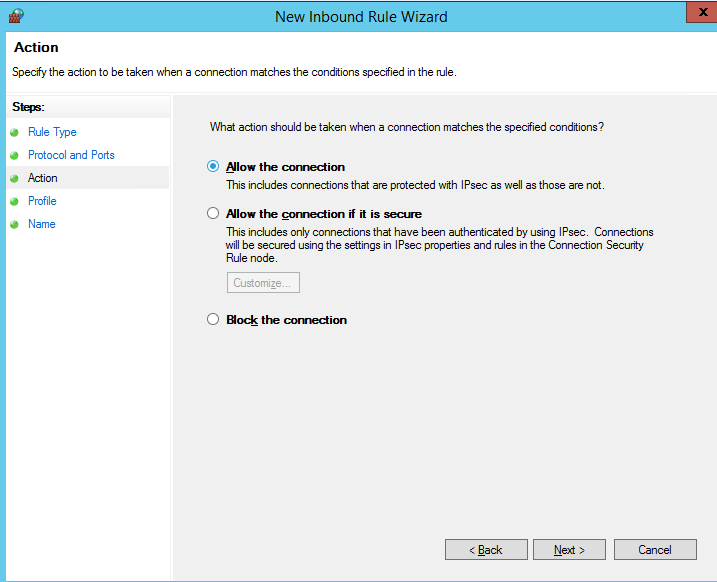
Then you must select what to do with such a network connection: Allow the connection, Allow the connection if it is secure, or Block the connection.
Then select the network profiles to apply the firewall rule. You can leave all profiles enabled (Domain, Private and Public).
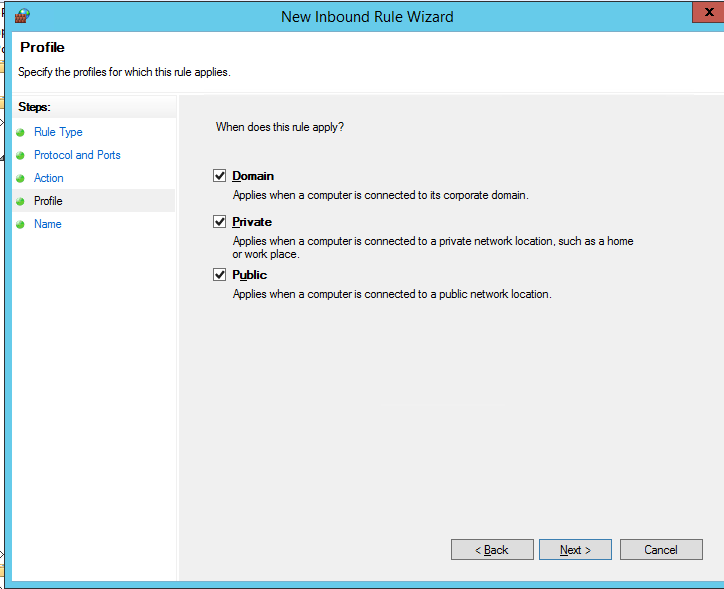
In the last step, specify the name and description of the rule. Click Finish, and it will appear in the list of firewall rules.
Modern versions of Windows also use UDP port 3389 for Remote Desktop (RDP) traffic. Therefore, create a second Microsoft Defender rule for that port as well.
In the same way, you can configure other inbound firewall rules to apply to your Windows clients. You can create rules for both inbound and outbound traffic.
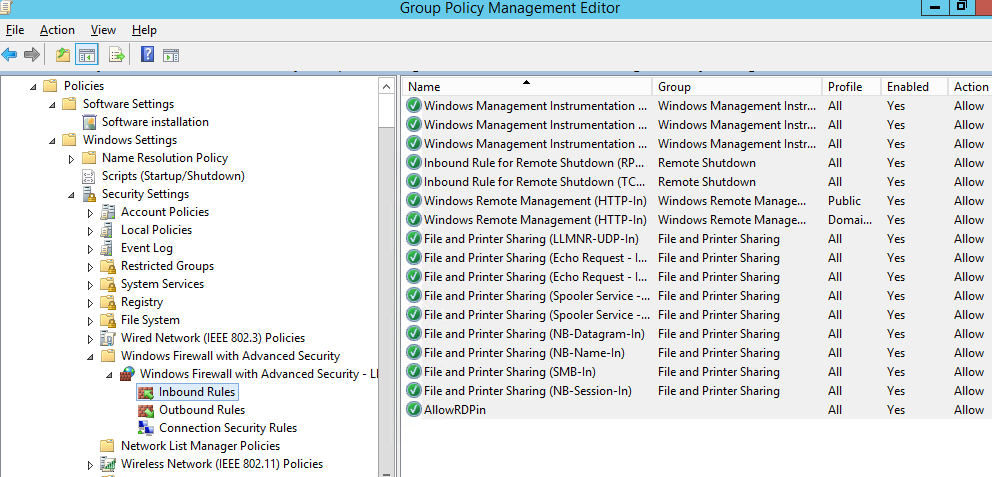
Above, we looked at how to use the graphical wizard to create Windows Defender Firewall rules.
Applying Microsoft Defender Firewall Rules to Windows Computers
You can also create a list of rules in plain text form and quickly add a large number of exceptions to Defender Firewall GPO.
Go to Computer Configuration -> Policies -> Administrative Templates -> Network -> Network Connections -> Windows Defender Profile -> Domain Profile and open the Windows Defender Firewall: Define inbound port exceptions policy. Here you can create a list of firewall rules with simple text strings.
Below is the list of inbound firewall rules that I want to add to the Group Policy:3389:UDP:localsubnet:enabled:In_RDP_UDP_3389 445:TCP:localsubnet:enabled:In_SMB_TCP_443 443:TCP:192.168.110.11:enabled:In_HTTP_TCP_445
Click the Show button and copy your rules line by line into the Define Port Exceptions form.
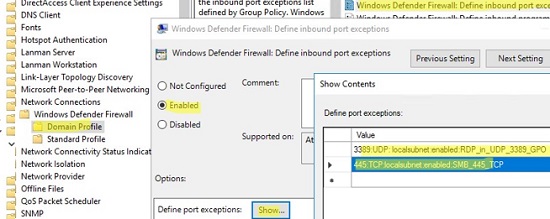
This method allows you to quickly create a large number of inbound rules for the Windows firewall.
Now it remains to assign the Firewall-Policy policy to the OU (Organizational Unit) with the user’s computers. Locate the desired OU in the Group Policy Management console, right-click on it, and select Link an Existing GPO. Select your firewall policy from the list.
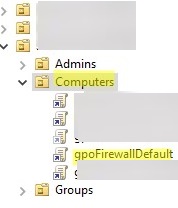
Important. Before applying a firewall policy to OU with production computers, it is strongly recommended to try it out on some test computers. Otherwise, due to wrong firewall settings, you can completely block network access on computers. To diagnose how your Group Policy is applied, use the gpresult tool.
Update the Group Policy settings on your clients (gpupdate /force). Verify that the ports you specified are open on users’ computers (you can use Test-NetConnection cmdlet or Portqry tool to check for open ports).
On a user’s computer, open the Control Panel -> System and Security -> Windows Defender Firewall and make sure that there is the message For your security, some settings are controlled by Group Policy and your firewall settings are used.
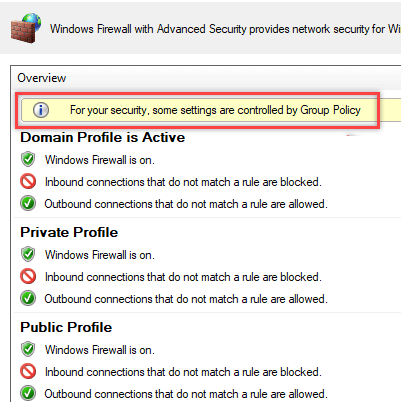
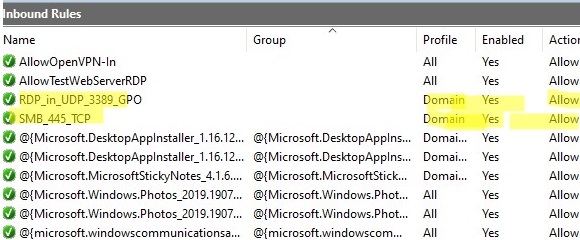
Now a user cannot change the firewall settings, and all rules that you have created must appear in the Inbound Rules list. Note that by default, new rules from the GPO are added to existing local firewall rules.
You can also display the current Windows Defender settings with the command:
netsh firewall show state
Or you can get the list of inbound rules in a table form using a PowerShell script:
Get-NetFirewallRule -Action Allow -Enabled True -Direction Inbound |
Format-Table -Property Name,
@{Name='Protocol';Expression={($PSItem | Get-NetFirewallPortFilter).Protocol}},
@{Name='LocalPort';Expression={($PSItem | Get-NetFirewallPortFilter).LocalPort}},
@{Name='RemotePort';Expression={($PSItem | Get-NetFirewallPortFilter).RemotePort}},
@{Name='RemoteAddress';Expression={($PSItem | Get-NetFirewallAddressFilter).RemoteAddress}},
Enabled,Profile,Direction,Action

How to Export and Import Firewall Rules on Windows?
The Windows Defender Firewall Console allows you to export and import the current firewall settings to a text file. You can configure firewall rules on the reference computer and export them to the Group Policy console.
Configure the rules you need, then go to the root of the firewall snap-in (Windows Defender Firewall Monitor with Advanced Security) and select Action -> Export Policy
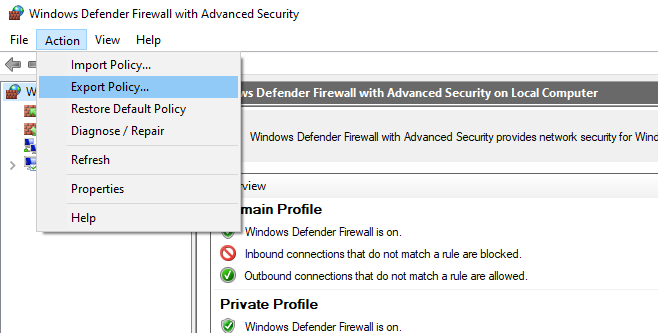
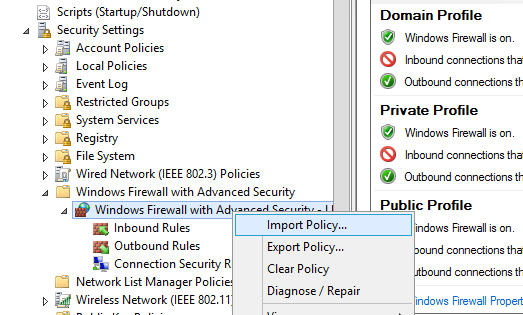
Your firewall rules will be exported into a WFW file, which can be imported to the Group Policy Management Editor by selecting the Import Policy option and specifying the path to the .wfw file (the current policy settings will be overwritten).
Merging Domain and Local Microsoft Defender Firewall Rules
In the GPO, you can specify whether you want to allow local administrators to create their own firewall rules on their computers, and how these rules should be merged with the rules assigned through the GPO.
Open the Windows Firewall policy properties in the GPO, select the tab with the profile (Domain) and click the Customize button. Check the settings in the Rule merging section. By default, rule merging is enabled. You can force a local administrator can create their own firewall rules: select Yes (default) in the Apply local firewall rules option.
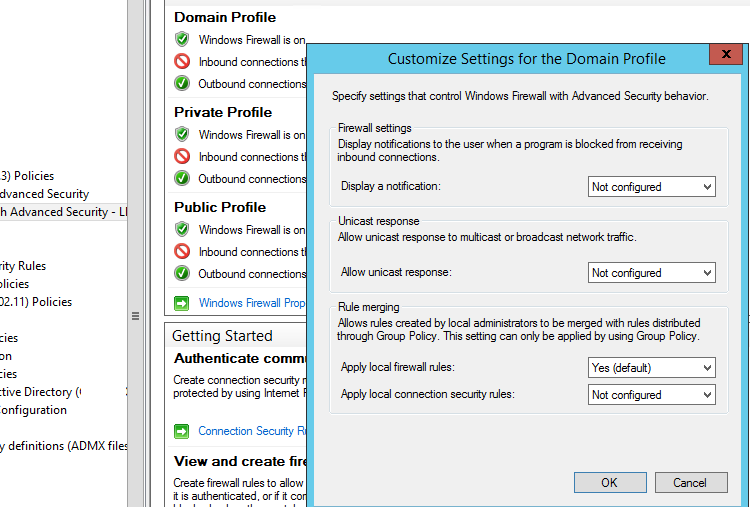
Tip. Blocking firewall rules have a higher priority than allowing ones. It means that a user cannot create an allowing access rule if it contradicts the deny rule configured by an administrator using GPO. However, a user will be able to create a local blocking rule, even if the access is allowed in the policy by the administrator.
Some tips on managing the Windows Firewall using a GPO:
- Create separate GPOs with firewall rules for servers and workstations (you may need to create your own policies for each group of similar servers depending on their role.
- This means that the firewall rules for a domain controller, an Exchange server, a server with the Remote Desktop Services Host (RDSH) role, or Microsoft SQL Server will differ;
- You can use WMI GPO filters to target policies more precisely to clients (for example, you can apply the policy to hosts on a specific IP subnet);
- You can find out which ports must be opened for each service in the documentation on the vendor’s website. The process is quite painstaking and complicated at the first glance.
- However, you can finally get a working Windows Firewall configuration that allows only approved network connections and blocks the rest.
Source
https://woshub.com