
1. Follow the Windows 11 install process until you get to the “choose a country” screen.
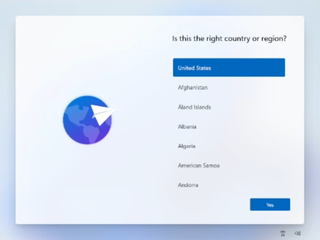
2. Hit Shift + F10. A command prompt appears.

3. Type OOBE\BYPASSNRO to disable the Internet connection requirement.
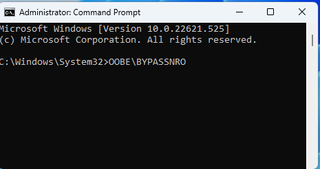
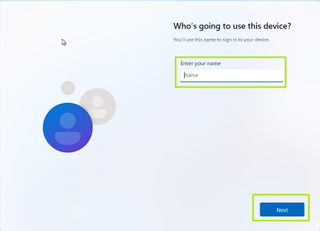
4. The PC will reboot and allow you to configure local account without the internet.

5. Enter a username you want to use for your local account and click Next.
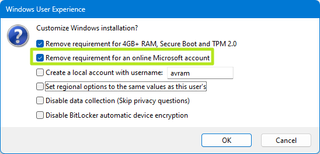
Alternatively, we can remove the “Remove requirement for an online Microsoft account” option when we create the ISo image using the RuFUS
Credits:
https://www.tomshardware.com/how-to/install-windows-11-without-microsoft-account