
Error when we try to access an Azure VM which was unable to communicate with the RDP Licensing server
If the below error occurs, continue with the troubleshooting steps.
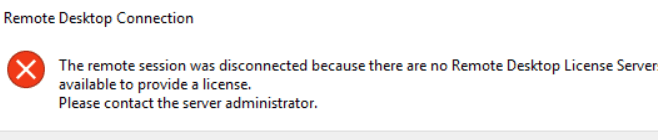
Since Remote Desktop Protocol (RDP) isn’t available and the server is in Azure, you’ll need to use PowerShell remoting or the Azure Serial Console to access the server and resolve the issue.
Here’s how to address the “Remote Desktop License Servers” error using PowerShell remotely.
Step 1: Access the Azure Virtual Machine (VM) via Azure Serial Console
- Open Azure Portal.
- Navigate to your Virtual Machine in Azure.
- In the VM blade, select Serial Console or Run Command from the left-hand menu.
- The Serial Console or Run Command provides a direct connection to the virtual machine that doesn’t require RDP.
- This will give you shell access to the VM.
Step 2: Run PowerShell in the Run Command or Serial Console
Once you’re in the Serial Console, switch to PowerShell:
- Type
powershellto enter the PowerShell environment in the serial console or enter the below commands directly in the Run Command
Step 3: Use PowerShell to Reset Remote Desktop Licensing Settings
Now that you have PowerShell access, you can reset the Remote Desktop Services (RDS) licensing settings using the following steps:
1. Remove Licensing Configuration from Registry
Run the following PowerShell commands to remove the existing RDS licensing configuration from the registry:
# Remove RDS Licensing Mode and License Server Configuration
Remove-ItemProperty -Path "HKLM:\SYSTEM\CurrentControlSet\Control\Terminal Server\RCM\Licensing Core" -Name "LicensingMode" -ErrorAction SilentlyContinue
Remove-ItemProperty -Path "HKLM:\SYSTEM\CurrentControlSet\Control\Terminal Server\RCM\Licensing Core" -Name "LicenseServers" -ErrorAction SilentlyContinue

# Remove the cached RDP licensing information
Remove-Item -Path "HKLM:\SOFTWARE\Microsoft\MSLicensing" -Recurse -Force -ErrorAction SilentlyContinue
2. Restart Remote Desktop Services
After resetting the registry, restart the Remote Desktop Services (TermService) using PowerShell:
# Restart Remote Desktop Services
Restart-Service -Name TermService
By using the Azure Serial Console and Run Command, you can effectively address and resolve the RDP licensing error.
Now try to access the server using RDP.
Cheers.
Sheik B