
OMA URL.
On the Custom OMA-URI Settings screen, select Add then enter the following settings:
- Name: Give it a unique name so you can easily identify it.
- Description: Enter a brief description that describes the setting.
- OMA-URI: ./Vendor/MSFT/AppLocker/AppLocker/ApplicationLaunchRestrictions/apps/EXE/Policy. This comes from the AppLocker CSP and you an find our documentation on that here.
- Data type: Choose String
- Value: Enter the XML from the below file.
  <RuleCollection Type="Exe" EnforcementMode="Enabled">
    <FilePathRule Id="f98623d1-cc2b-42e9-9a92-177eca2dc6d1" Name="All files located in the Program Files folder" Description="Allows members of the Everyone group to run applications that are located in the Program Files folder." UserOrGroupSid="S-1-1-0" Action="Allow">
      <Conditions>
        <FilePathCondition Path="%PROGRAMFILES%\*" />
      </Conditions>
    </FilePathRule>
    <FilePathRule Id="7671a138-75ef-4443-acec-040e9ca77e25" Name="All files located in the Windows folder" Description="Allows members of the Everyone group to run applications that are located in the Windows folder." UserOrGroupSid="S-1-1-0" Action="Allow">
      <Conditions>
        <FilePathCondition Path="%WINDIR%\*" />
      </Conditions>
    </FilePathRule>
    <FilePathRule Id="47c540b4-ad06-4b74-b319-cfd1dc7398b2" Name="All files" Description="Allows members of the local Administrators group to run all applications." UserOrGroupSid="S-1-1-0" Action="Allow">
      <Conditions>
        <FilePathCondition Path="%PROGRAMFILES%\*" />
      </Conditions>
    </FilePathRule>
  </RuleCollection>
Additional OMA-URI formats.
- MSI – ./Vendor/MSFT/AppLocker/ApplicationLaunchRestrictions/apps/MSI/Policy
- Script – ./Vendor/MSFT/AppLocker/ApplicationLaunchRestrictions/apps/Script /Policy
- DLL – ./Vendor/MSFT/AppLocker/ApplicationLaunchRestrictions/apps/DLL/Policy
- Appx – ./Vendor/MSFT/AppLocker/ApplicationLaunchRestrictions/apps/StoreApps /Policy
Generating the XML
The first step is to generate the XML we need for Intune by modelling the policy on a Windows 10 computer.
1. On a computer running Windows 10 Enterprise, start Group Policy Editor (GPEdit).
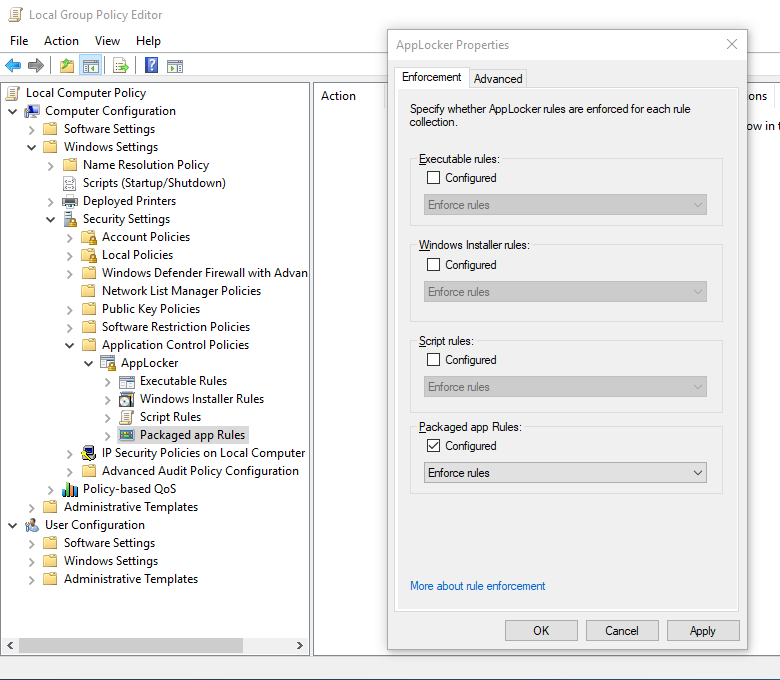
2. Under Computer Configuration\Windows Settings\Security Settings\Application Control Policies\AppLocker, right-click and select Properties, then enable Packaged app Rules and select Enforce rules. This turns on our AppLocker rules. Once done, click OK.
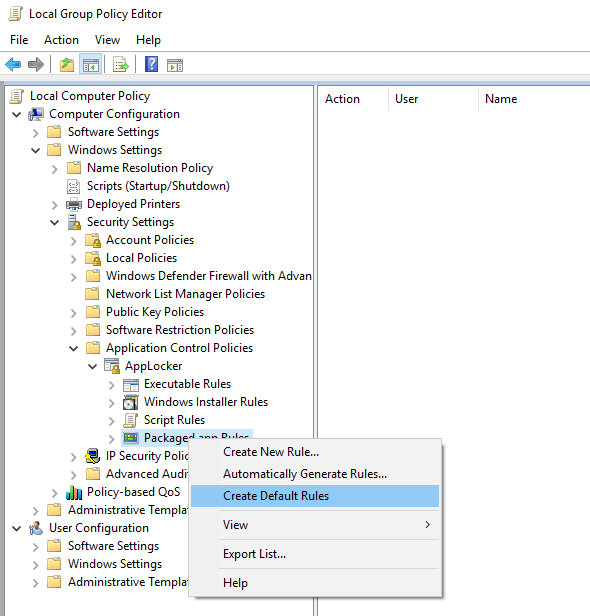
3. Next we need to create two Packaged app Rules: one default rule to allow all apps to run, and another rule to block our particular app. First, right-click Packaged app Rules and select Create default Rules. This will create a rule that allows all signed apps to be executed. Note that this setting only applies to Modern Apps and not Win32 applications.
4. Now create another new Package app Rule by right-clicking Packaged app Rules and selecting Create New Rule. This will start the Create Packaged app Rules wizard. Click Next to continue.

5. In this example we want to deny everyone access to the Mail app, so on the next screen select Deny and specify Everyone, then click Next.

6. Select Use an installed packaged app as a reference and click Select.

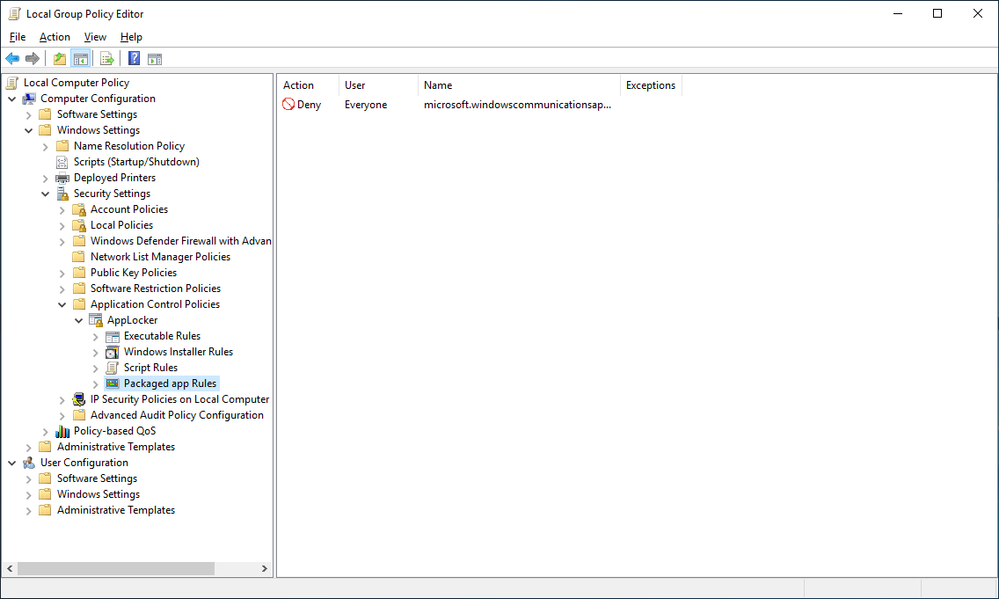
7. Here is where we select the app we want to block. In our example we’ll choose the one with Package Name = microsoft.windowscommunicationsapp which is the Windows Mail app. Once selected, click OK and Create.

8. Now we have a local policy created that blocks the built-in mail app. This will be our template.
9. Next we need to export that policy so we can use it in Intune. Right-click AppLocker and select Export policy. Save the file on a share so you can access it from the computer you will be using to create the policy in Intune.

10. When exporting the policy, an XML file will be generated that looks something like this:
<AppLockerPolicy Version="1">

  <RuleCollection Type="Exe" EnforcementMode="Enabled">

    <FilePathRule Id="921cc481-6e17-4653-8f75-050b80acca20" Name="(Default Rule) All files located in the Program Files folder" Description="Allows members of the Everyone group to run applications that are located in the Program Files folder." UserOrGroupSid="S-1-1-0" Action="Allow">

      <Conditions>

        <FilePathCondition Path="%PROGRAMFILES%\*" />

      </Conditions>

    </FilePathRule>

    <FilePathRule Id="a61c8b2c-a319-4cd0-9690-d2177cad7b51" Name="(Default Rule) All files located in the Windows folder" Description="Allows members of the Everyone group to run applications that are located in the Windows folder." UserOrGroupSid="S-1-1-0" Action="Allow">

      <Conditions>

        <FilePathCondition Path="%WINDIR%\*" />

      </Conditions>

    </FilePathRule>

    <FilePathRule Id="fd686d83-a829-4351-8ff4-27c7de5755d2" Name="(Default Rule) All files" Description="Allows members of the local Administrators group to run all applications." UserOrGroupSid="S-1-5-32-544" Action="Allow">

      <Conditions>

        <FilePathCondition Path="*" />

      </Conditions>

    </FilePathRule>

  </RuleCollection>

  <RuleCollection Type="Msi" EnforcementMode="NotConfigured" />

  <RuleCollection Type="Script" EnforcementMode="NotConfigured" />

  <RuleCollection Type="Dll" EnforcementMode="NotConfigured" />

  <RuleCollection Type="Appx" EnforcementMode="NotConfigured">

    <FilePublisherRule Id="65bd6e53-0bf6-43dc-a85d-9668f66bf9dd" Name="microsoft.windowscommunicationsapps, version 16005.11029.0.0 and above, from Microsoft Corporation" Description="" UserOrGroupSid="S-1-1-0" Action="Deny">

      <Conditions>

        <FilePublisherCondition PublisherName="CN=Microsoft Corporation, O=Microsoft Corporation, L=Redmond, S=Washington, C=US" ProductName="microsoft.windowscommunicationsapps" BinaryName="*">

          <BinaryVersionRange LowSection="16005.11029.0.0" HighSection="*" />

        </FilePublisherCondition>

      </Conditions>

    </FilePublisherRule>

  </RuleCollection>

</AppLockerPolicy>
It’s important to note that if we use all of the XML in our Intune policy then the policy will fail because it includes other NotConfigured rules for things like MSI, Script, DLL and APPX. What we need to do is take only the configured RuleCollection element of our XML for use in our policy, like this:
<RuleCollection Type="Exe" EnforcementMode="Enabled">

    <FilePathRule Id="921cc481-6e17-4653-8f75-050b80acca20" Name="(Default Rule) All files located in the Program Files folder" Description="Allows members of the Everyone group to run applications that are located in the Program Files folder." UserOrGroupSid="S-1-1-0" Action="Allow">

      <Conditions>

        <FilePathCondition Path="%PROGRAMFILES%\*" />

      </Conditions>

    </FilePathRule>

    <FilePathRule Id="a61c8b2c-a319-4cd0-9690-d2177cad7b51" Name="(Default Rule) All files located in the Windows folder" Description="Allows members of the Everyone group to run applications that are located in the Windows folder." UserOrGroupSid="S-1-1-0" Action="Allow">

      <Conditions>

        <FilePathCondition Path="%WINDIR%\*" />

      </Conditions>

    </FilePathRule>

    <FilePathRule Id="fd686d83-a829-4351-8ff4-27c7de5755d2" Name="(Default Rule) All files" Description="Allows members of the local Administrators group to run all applications." UserOrGroupSid="S-1-5-32-544" Action="Allow">

      <Conditions>

        <FilePathCondition Path="*" />

      </Conditions>

    </FilePathRule>

</RuleCollection>https://www.vansurksum.com/2020/02/24/a-guide-to-implementing-applocker-on-your-modern-workplace/
Just create a new XML with the configuration you want to apply, and make sure that you define a new unique OMA-URI string, in my case: ./Vendor/MSFT/AppLocker/ApplicationLaunchRestrictions/I2402/StoreApps/Policy. If you don’t make the string unique you will have a policy conflict.