
Deploy File to Intune Enrolled Devices
Deploy a file to Intune enrolled device’s to “C:\Users\Public\Desktop” through Intune
Step 1: Prepare the files:
- The File
- Install-file.ps1
- Remove-file.ps1
- Detect-file.ps1
Step 2″ Create an Install, Remove & Detect script & save each scripts
A. Install:
#Installation Script: Install-file.ps1
$FileName = “FileToDesktop.pdf”
$ScriptPath = [System.IO.Path]::GetDirectoryName($MyInvocation.MyCommand.Definition)
Copy-Item -Path “$ScriptPath\$FileName” -Destination “$Env:Public\Desktop”
B. Remove:
# Remove Installation: Remove-file.ps1
$FileName = “FileToDesktop.pdf”
Remove-Item -Path “$Env:Public\Desktop\$FileName”
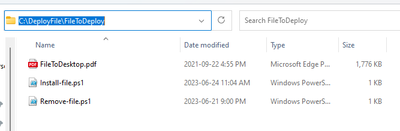
C. Detect: # save this in a separate folder
#Detect File : Detect-file.ps1
$FileName = “FileToDesktop.pdf”
if (Test-Path -Path “$Env:Public\Desktop\$FileName”){
Write-Output “0”
}
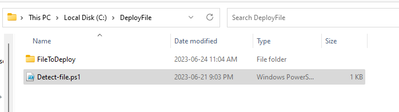
Step 3: collect Install-file .ps1, Remove-file .ps1 and the required files in one folder as shown above and create an Intune installation Package.
PS C:\Intune\WindowsIntunePrepTool> .\IntuneWinAppUtil.exe
Please specify the source folder: C:\DeployFile\FileToDeploy
Please specify the setup file: FileToDesktop.pdf
Please specify the output folder: C:\DeployFile
Do you want to specify catalog folder (Y/N)?N


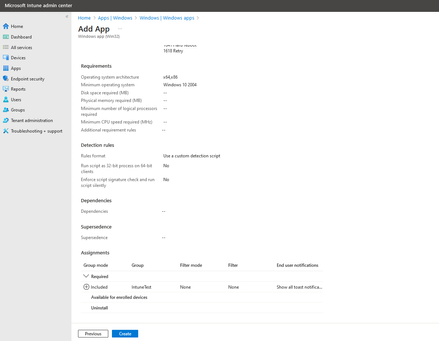
Step 4. Deploy Intune installation file with the following commands
- Upload the IntunePackage as ” App : Windows app (Win32)
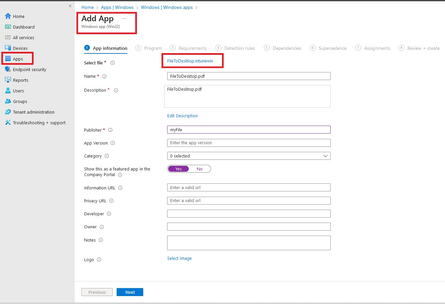
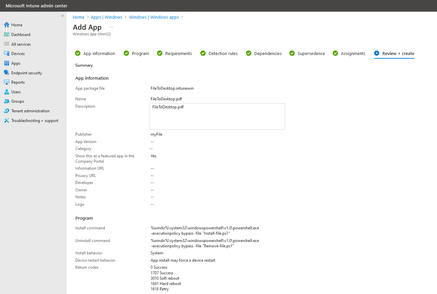
- Install Command: %windir%\system32\windowspowershell\v1.0\powershell.exe -executionpolicy bypass -file “Install-file.ps1”
- Uninstall Command: %windir%\system32\windowspowershell\v1.0\powershell.exe -executionpolicy bypass -file “Remove-file.ps1”
- Operating system architecture = select both 32/64-bit
- Detection rule: use custom detection script and upload the Detect script created above.

Following the above steps, it is straight forward and easy to deploy a file to Intune Enrolled devices when required.