
Connect to Windows Internal Database
We can connect to the WID using the Named Piped connection. To read more about named pipe connections.
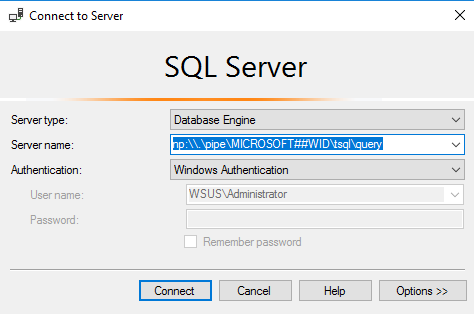
Open SQL Server Management Studio 🡪 On Connect to Server screen, specify the following named pipe connection string in the Server name textbox and click on Connect.
np:\\.\pipe\MICROSOFT##WID\tsql\query
Below is the screenshot of the Connect to Server screen.
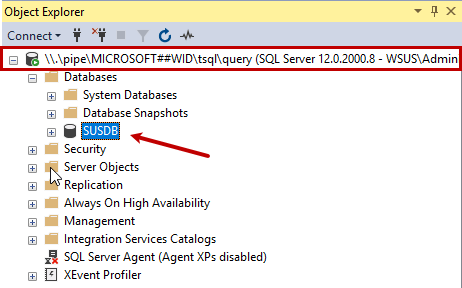
You can view the databases in the object explorer window. We have configured the WSUS; therefore, you can see the SUSDB in the object explorer.
Once connected, run the following query to view the version of the SQL Server.
| 1 | Select @@version |

Let us view the location of the data and log files of the SUSDB.
| 123 | Use SUSDBGoSelect file_id,type_desc,name,physical_name,state_desc,max_size from sys.database_files |

- Note: As I explained, we must not change the schema of the internal database because it will break the application. To demonstrate, let us change the schema by creating a table in a SUSDB. Create a table named Test in the SUSDB by executing the following query123Use SUSDBgoCreate table Test(id int)
The table will be created successfully. After adding the table, restart the services using the following command.
| 1 | Restart-Service “Windows Internal Database” |
Once services are restarted, connect to the SQL Server instance and open object explorer.
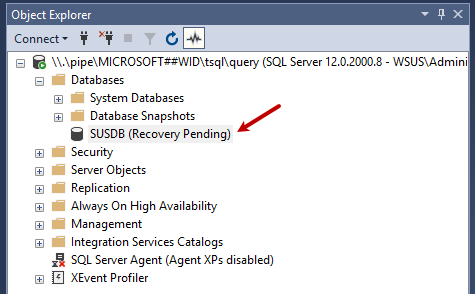
As you can see, the database is in Recovery Pending that indicates the SUSDB database is not operational. When we open the Windows Server update services, it will throw the following error.
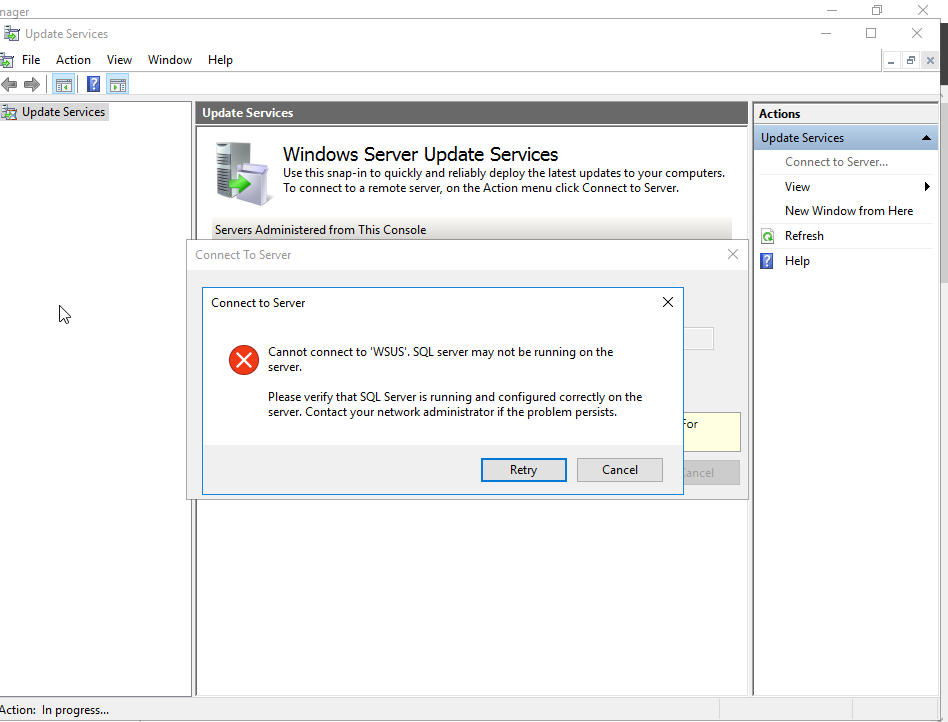
To resolve this issue, we must re-install the WSUS services on the server.